Master CS2 with our ultimate beginner’s guide to keybinds and settings. Learn the best configurations, pro tips, and performance tweaks to boost your gameplay in Counter-Strike 2.

Getting into Counter-Strike 2 (CS2) can feel a bit overwhelming, especially for beginners. Between the fast-paced gameplay, complex strategies, and competitive atmosphere, there’s a lot to take in. But here’s a little secret—one of the biggest factors that can make or break your early experience isn’t just aim or reflexes… it’s your settings and keybinds.
Whether you’re looking to improve your comfort, reaction time, or simply play smarter, having the right configurations can make a world of difference. In this guide, we’ll walk you through everything you need to know about CS2 keybinds and settings, all tailored for new players.
Let’s jump in and start setting you up for success.
Introduction to CS2 and Its Importance

What is CS2 (Counter-Strike 2)?
Counter-Strike 2 (CS2) is the highly anticipated sequel to Counter-Strike: Global Offensive (CS:GO), built on Valve’s Source 2 engine. With major overhauls in graphics, movement, UI, and gameplay systems, CS2 aims to refine the classic CS formula while maintaining its core competitive nature.
This isn’t just another shooter—it’s a tactical, high-skill game where every decision counts. Reaction time, map knowledge, communication, and yes—settings and keybinds—all play a critical role.
The better your settings are tailored to your needs, the faster you’ll improve. And for beginners, getting this part right early on will save you from countless frustrations down the road.
Why Settings and Keybinds Matter for New Players
You might be wondering, “Can’t I just use the default settings?” Technically, yes. But the problem is that default settings aren’t designed with your comfort or performance in mind.
Here’s why optimizing your settings and keybinds is crucial:
- Muscle Memory: Custom keybinds allow you to build reliable muscle memory faster.
- Reaction Time: Quick access to grenades, weapons, or voice commands can mean the difference between winning and losing a round.
- Ergonomics: Prevent wrist fatigue and finger strain with logical and comfortable key placements.
- Clarity: Proper video and audio settings make it easier to spot enemies and hear key game cues.
In short, fine-tuning your CS2 setup gives you a solid foundation to learn the game efficiently and enjoy it more.
Getting Started with CS2 Basics

Minimum System Requirements
Before we jump into the nitty-gritty of settings, it’s important to make sure your PC can run CS2 smoothly. CS2’s Source 2 engine is more demanding than CS:GO, but it’s still fairly well-optimized.
Here are the recommended minimum specs:
| Component | Minimum Requirements |
|---|---|
| OS | Windows 10 64-bit |
| CPU | Intel Core i5-750 / AMD FX-6300 |
| RAM | 8 GB |
| GPU | GTX 1060 / AMD RX 580 or better |
| Storage | SSD with at least 60 GB free |
Tip: If you’re on a low-end machine, don’t worry—we’ll talk about how to optimize CS2 for performance later on.
Initial Setup and First Launch Configuration
Once you launch CS2 for the first time, you’ll be prompted with some basic setup options. But don’t just click “Next” through them. Take the time to:
- Adjust resolution to match your monitor’s native res.
- Enable full screen mode (not borderless) for better performance.
- Set max FPS to match your monitor refresh rate or use
+fps_max 0in launch options to uncap it. - Disable Motion Blur and V-Sync immediately.
Once you’re in the main menu, head into the Settings tab to start customizing.
Best General Settings for Beginners
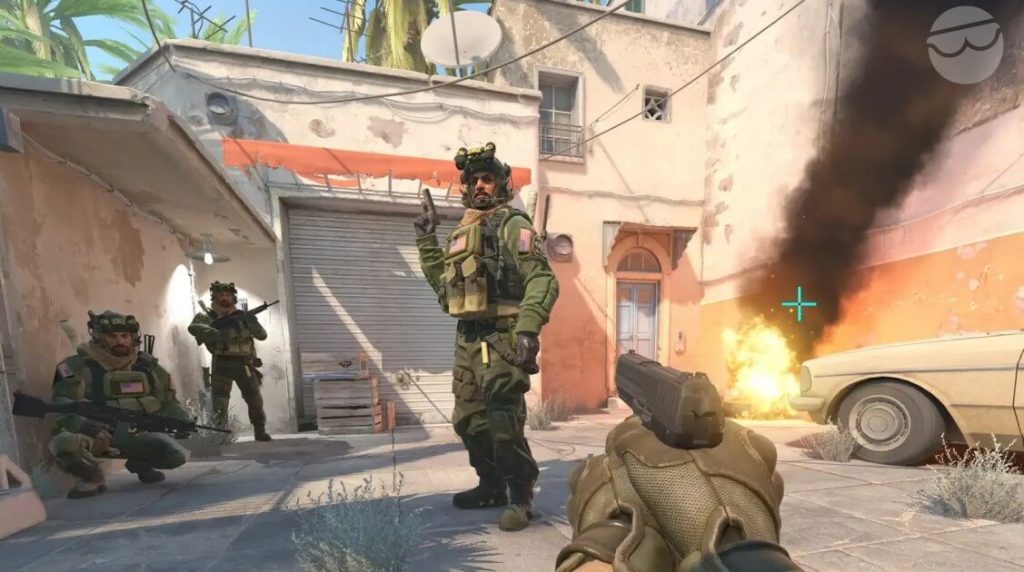
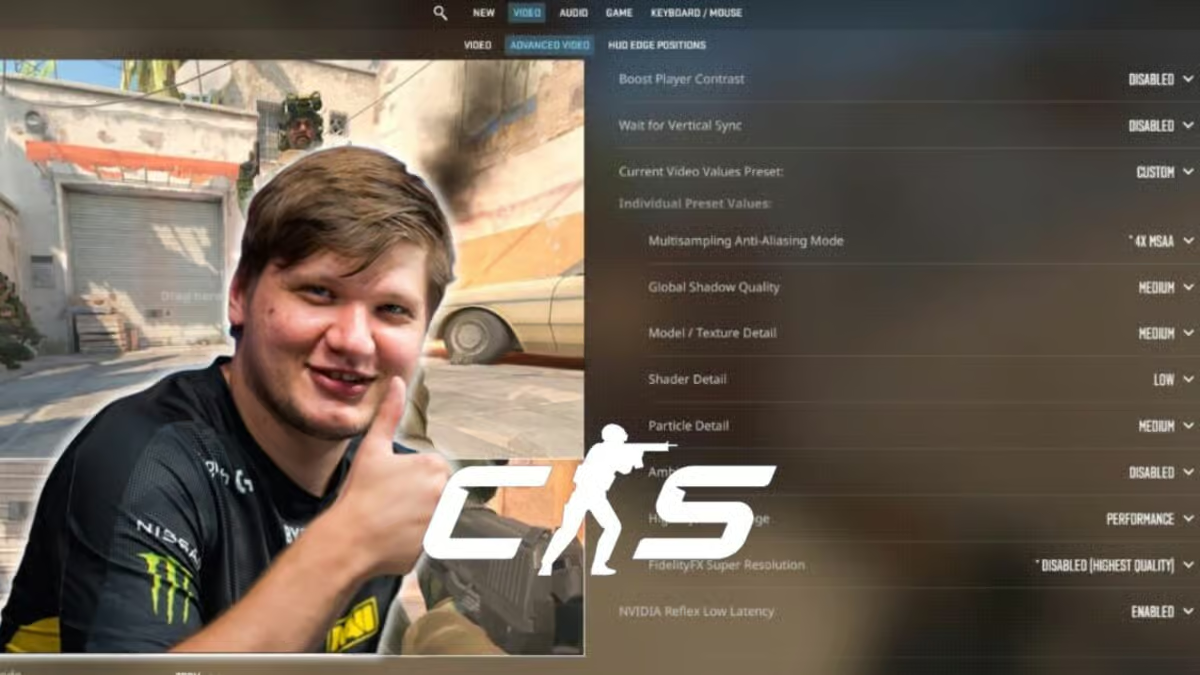
Video Settings: Optimize for Performance or Quality?
This is a question most new players ask—should you prioritize beauty or frames? The answer is almost always: prioritize performance.
In CS2, higher frame rates translate to smoother aiming, quicker reaction time, and a more consistent experience. Here’s a good beginner baseline:
- Resolution: 1920×1080 (native) or 1280×960 for more performance.
- Display Mode: Fullscreen
- Global Shadow Quality: Low
- Model / Texture Detail: Low or Medium
- Effect Detail: Low
- Shader Detail: Low
- Multisampling Anti-Aliasing Mode: None or 2x
- Texture Filtering Mode: Bilinear
Advanced Settings:
- Boost Player Contrast: ON
- Multicore Rendering: ON
- Ambient Occlusion: OFF
- Vertical Sync: OFF
Aim for a consistent 144+ FPS if you’re using a high-refresh-rate monitor. For most users, 100+ is a great starting point.
Audio Settings: Hear Every Footstep
Sound in CS2 is your best friend—being able to hear footsteps, reloads, or grenade pins can give you a tactical advantage. Here’s what you need:
- Master Volume: 70-80% (Adjust based on your headset)
- Music Volume: Off or low
- VOIP Volume: Medium (So you can hear your teammates clearly)
- Sound Quality: High
- Advanced 3D Audio Processing: On if supported by your headset
Pro Tip: Use headphones. Don’t rely on speakers if you want to hear positional cues.
Crosshair Settings: Choosing the Right Style
Your crosshair is the one thing you’ll stare at for hours, so make it count. CS2 offers deep customization:
- Style: Static (No movement)
- Color: Cyan, Green, or White for visibility
- Thickness: 0.5 – 1.5
- Length: 3 – 5
- Outline: On (for contrast)
- Center Dot: Optional
Stick with a simple, small crosshair that doesn’t distract. Avoid dynamic crosshairs that expand with movement—they’re more confusing than helpful for beginners.
Understanding and Customizing Keybinds

Default Keybinds Overview
Before we get into custom binds, let’s quickly look at the defaults. Here are the most important ones:
| Action | Default Key |
|---|---|
| Move Forward | W |
| Move Backward | S |
| Move Left | A |
| Move Right | D |
| Jump | Space |
| Duck | Ctrl |
| Use | E |
| Fire | Mouse1 |
| Secondary Fire | Mouse2 |
| Reload | R |
| Buy Menu | B |
| Inventory | F1 |
| Voice Chat | K |
These are decent to start with, but you’ll want to tweak some of these for speed and comfort.
Top Essential Keybinds for Beginners
Buy Binds for Quick Purchase
Opening the buy menu and manually clicking can waste precious seconds during the buy phase. Instead, use buy binds to instantly equip your preferred loadout with a single keypress.
Example:
bind "F1" "buy ak47; buy vesthelm; buy defuser; buy flashbang; buy smokegrenade;"
This one key will buy an AK, helmet, defuser, flashbang, and smoke all at once.
Common buy bind keys: F1 – F4, Numpad, or unused letters like Z, X, C
How to Add Buy Binds:
- Open your CS2 console with
~ - Paste the bind command
- Press enter
You can also add them to your autoexec.cfg to keep them saved.
Mouse and Keyboard Setup Tips
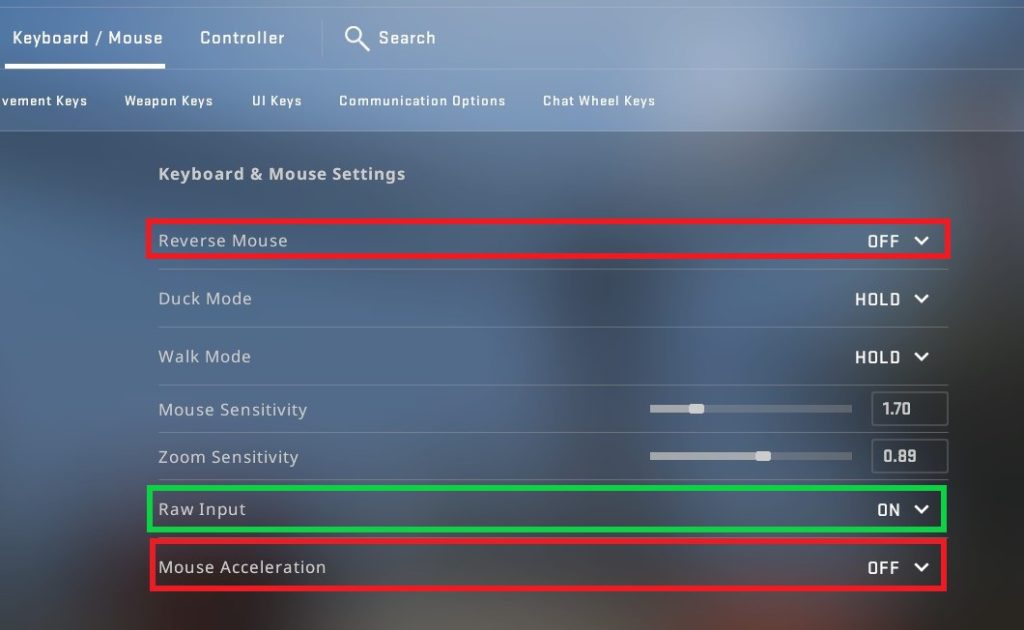
Best Mouse Settings: Sensitivity, DPI, and Polling Rate
Your mouse settings are arguably the most critical factor in aiming accurately. While there’s no “perfect” sensitivity, there are some tried-and-true ranges and methods to find what works best for you.
Key Terms to Understand:
- DPI (Dots Per Inch): This is set in your mouse software. Most CS2 pros use 400–800 DPI.
- Sensitivity (In-Game): A multiplier applied to your DPI. A common range is 1.5–3.0.
- eDPI (Effective DPI): Calculated by DPI × Sensitivity. Ideal range: 600–1200.
- Polling Rate: Determines how often your mouse sends data to the PC. Set this to 1000Hz for the smoothest tracking.
How to Find the Right Sensitivity:
- Start with 800 DPI and an in-game sensitivity of 1.0–1.5.
- Play against bots or in deathmatch for 30 minutes.
- If it feels too fast or slow, adjust in 0.1 increments.
- Use a large mousepad so you have room for sweeping motions—lower sensitivity encourages accuracy.
Disable Mouse Acceleration:
- Windows: Go to Control Panel > Mouse > Pointer Options and uncheck Enhance Pointer Precision.
- CS2: Use the launch option
-noforcemspd -noforcemaccel -noforcemparms
Final Tip: Stick with a sensitivity once you’re comfortable. Changing it frequently destroys muscle memory.
Keyboard Layout Suggestions for Efficient Play
Your keyboard layout can impact everything from movement to grenade usage. If your fingers are constantly stretching to awkward keys, you’re losing time—and potentially fights.
Common Rebinds:
- Jump: Rebind to Mouse Wheel Up or Down for better bunny hopping.
- Crouch: Move from Ctrl to Shift or Caps Lock for easier reach.
- Mic/Push-to-Talk: Bind to Mouse Button 4 if available.
- Use (E): Leave as is—it’s essential for bomb plants, defusing, and opening doors.
- Grenades: Use Z, X, C, or mouse buttons for different grenades (smoke, flash, molotov, HE).
Example Layout:
| Key | Action |
|---|---|
| W, A, S, D | Movement |
| Space | Jump |
| MWHEELDOWN | Jump (Alternative for bhop) |
| Shift | Crouch |
| F | Flashbang |
| X | Smoke |
| Z | HE Grenade |
| C | Molotov |
| Mouse4 | Push-to-talk |
The goal is simple—reduce hand movement, improve reaction speed, and eliminate clunky mechanics. Think of your keyboard layout like a Formula 1 steering wheel. Every button should be intuitive and quick to access.
Advanced Keybind Techniques
Jump Throw Binds for Consistent Nades
If you’ve watched pro matches, you’ve seen those pixel-perfect smoke lineups. What most people don’t know? Those throws are often done using a jump throw bind—a combo that ensures your smoke lands the same way every time.
How to Set Up a Jump Throw Bind:
alias "+jumpthrow" "+jump;-attack"
alias "-jumpthrow" "-jump"
bind "ALT" "+jumpthrow"
This allows you to press ALT once, and it jumps and throws the grenade at the exact same moment—frame perfect.
Pro Tip: This bind is a must if you’re practicing lineup-heavy maps like Mirage, Inferno, or Dust2.
Crouch Jump and Bind Combinations
Some areas in CS2 require a crouch jump—a jump combined with crouch to access higher spots. Doing this manually can be clunky. Automating it helps.
Crouch Jump Bind:
bind "v" "+jump; +duck"
Pressing V will now do both actions at once, making platforming smoother. Use it to:
- Jump onto boxes and ledges
- Climb tight spots like mid window on Mirage
Weapon Drop and Quick Switch Binds
Want to drop your weapon fast or fake a reload? Binds help you pull off advanced tricks faster.
Quick Switch Bind (Useful for AWPers):
bind "q" "use weapon_knife; slot1"
Pressing Q instantly switches to knife and back—helpful for quickscoping or cancelling reloads.
Drop Weapon Bind:
Default is G, but you can rebind it to something closer (like T) if you’re dropping often in clutch situations.
Pro Player Keybind Inspirations

Keybinds Used by Top CS2 Pros
Want to know what the best in the world are using? Here’s a glimpse into popular pro player setups:
| Player | Sensitivity | Crosshair Style | Jump Throw |
|---|---|---|---|
| s1mple | 3.09 @ 400 DPI | Cyan, Dot Crosshair | Yes |
| NiKo | 1.45 @ 800 DPI | Classic Green | Yes |
| ZywOo | 2.0 @ 400 DPI | White, Small Gap | Yes |
| ropz | 1.77 @ 400 DPI | Yellow, Minimal | Yes |
Most pros:
- Use low sensitivity
- Prefer simple crosshairs
- Rely heavily on binds for utility
How to Import Pro Settings Safely
You can copy a pro’s setup, but do it wisely:
- Find Their Config Files:
- Use sites like prosettings.net or HLTV.org
- Open Your CS2 Folder:
- Path:
C:\Program Files (x86)\Steam\userdata\[YOUR_ID]\730\local\cfg
- Path:
- Paste Their Config File as
autoexec.cfg - Launch CS2 with:
+exec autoexec.cfg
Caution: Don’t blindly copy everything. Use their settings as a foundation, but tweak them for your own needs. Pro gear and reflexes don’t automatically transfer to your setup.
Common Mistakes to Avoid When Setting Keybinds
Overcomplicating Your Layout
This is a beginner trap: you see a Reddit thread with 25 binds and macros and copy them all.
Problem? You’ll forget what half of them do.
Rule of Thumb: Only use binds you can remember and reach comfortably.
Avoid these:
- Binding every grenade to a number you never use
- Binding multiple commands to one key
- Having multiple toggle binds (confusing in heat of battle)
Stick to a lean, effective layout. You’ll thank yourself later.
Not Practicing with New Binds
Changing keybinds once is smart. Doing it weekly? That’s asking for disaster.
Muscle memory takes time. If you switch binds often:
- You’ll hesitate during critical moments
- You’ll misclick and lose duels
- Your progress will slow
Solution: Practice for at least 1–2 weeks with your new setup before considering changes. Run maps like “aim_botz” or “training_aim_csgo2” to drill your binds into your muscle memory.
Testing and Adjusting Your Keybinds

Practice Maps for Testing Keybinds
Setting your binds is only half the battle—you need to test them in-game. The best place to do this? Offline practice maps.
Here are some must-have maps from the Steam Workshop:
- Yprac Training Grounds
- Includes utility practice, movement drills, and crosshair training.
- Aim Botz
- Perfect for testing shooting mechanics, recoil control, and quick reflexes.
- Training_aim_csgo2
- Great for micro-adjustments, flicks, and reaction testing.
- NadeKing’s Recoil Master
- Test jump throws, sprays, and grenade binds.
How to Use These Maps:
- Subscribe to them via Steam Workshop
- Open CS2 → Play → Workshop Maps → Launch the map
- Test each bind in a low-stress environment
While in these maps, focus on:
- Checking if your movement binds feel natural
- Making sure your utility binds are easily reachable
- Practicing jump throws and crouch jumps
Tweaking Over Time: What to Watch For
Even if your binds felt great at first, real match experience will tell the truth. Pay attention to these red flags:
- Misclicking during firefights
- Struggling to switch grenades
- Missing jump throws
- Accidentally dropping weapons
If this happens:
- Go back to your config and reassign problem keys
- Don’t hesitate to simplify—less is more
- Test any changes again before jumping into ranked play
Final Rule: Your binds should disappear into the background. You shouldn’t think about them; they should just work.
Recommended Settings Config for Beginner Players
Balanced Setup for Casual Competitive Play
If you’re a beginner looking to climb ranks without stressing over pro settings, here’s a well-rounded setup that prioritizes visibility, responsiveness, and ease of use.
Video Settings:
- Resolution: 1280×960 (stretched) or 1920×1080 (native)
- Fullscreen Mode
- Shadows: Low
- Effects: Low
- Anti-Aliasing: Off
- Boost Player Contrast: ON
- Multicore Rendering: ON
Audio Settings:
- Master Volume: 80%
- Music Volume: Off
- 3D Audio: ON
- Headphones: Mandatory
Mouse Settings:
- DPI: 800
- Sensitivity: 1.5
- Raw Input: ON
- Mouse Acceleration: OFF
Crosshair:
- Style: Static
- Color: Green or Cyan
- Gap: -2
- Thickness: 1
Keybinds:
- Jump: Mouse Wheel Down
- Crouch: Shift
- Flash: F
- Smoke: X
- HE: Z
- Molotov: C
- Use Mic: Mouse4
This setup gives you fast reflex capabilities, easy utility access, and consistent visual clarity—all while remaining beginner-friendly.
Setup for Low-End PCs
If you’re playing on a potato PC (no shame!), your main goal should be FPS and stability.
Low-Spec Optimized Config:
- Resolution: 1024×768 (black bars or stretched)
- Texture Detail: Low
- Shader Detail: Low
- Effect Detail: Low
- Anti-Aliasing: OFF
- V-Sync: OFF
- Motion Blur: OFF
Also, run the game with the following Launch Options:
-novid -high -threads 4 -nojoy -tickrate 128 +fps_max 0 -fullscreen
This config will squeeze every frame possible out of your system without sacrificing gameplay clarity.
Saving and Backing Up Your Settings
Creating and Using Autoexec.cfg
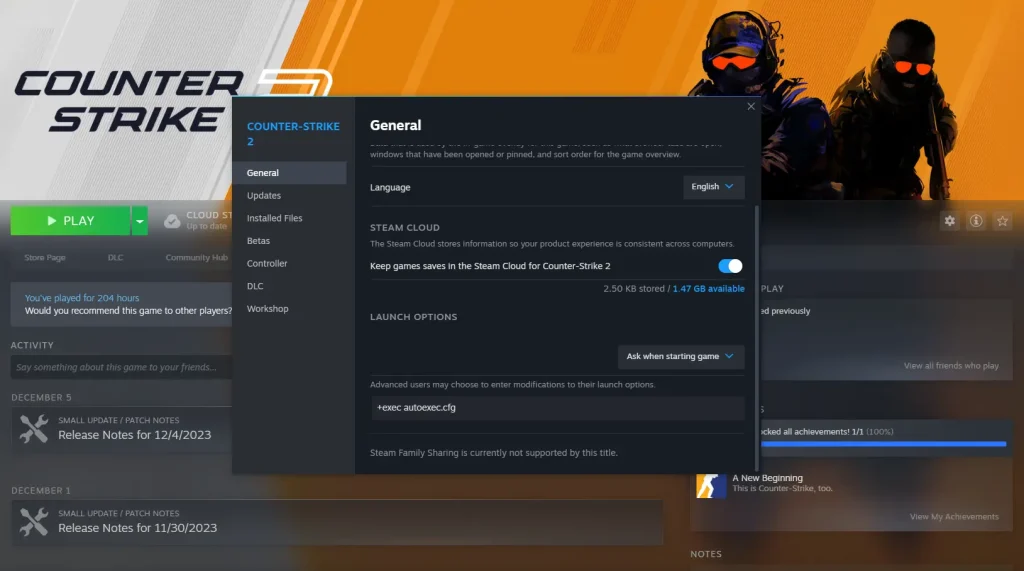
Once your settings are dialed in, don’t risk losing them—save them to an autoexec file.
What is Autoexec.cfg?
A script that auto-runs every time you launch CS2, storing your settings, binds, crosshair, and more.
How to Create One:
- Open Notepad
- Paste all your custom binds and settings
- Save as
autoexec.cfg - Place it in:
Steam\userdata\[your_ID]\730\local\cfg\
Recommended Commands in Autoexec:
cl_crosshairsize 3
cl_crosshaircolor 4
bind "mwheeldown" "+jump"
alias "+jumpthrow" "+jump;-attack"
alias "-jumpthrow" "-jump"
bind "alt" "+jumpthrow"
How to Back Up Config Files Properly
Want to carry your settings to another PC or just have a safety net?
Steps:
- Navigate to:
Steam\userdata\[your_ID]\730\local\cfg\
- Copy these files:
config.cfgautoexec.cfg
- Upload to Google Drive, OneDrive, Dropbox, or a USB stick
Whenever you reinstall CS2 or play on a new machine, just copy them back into the same folder.
Community Resources and Tools
Useful Websites and Tools for Binds
There are countless resources created by the community to help you customize even further. Here are some top picks:
- https://csgoconsole.com – Test and preview crosshairs
- https://prosettings.net/ – See pro configs and equipment
- https://csgobindsgenerator.com – Easy GUI for buy binds, jump throws, grenade binds
- https://clutchround.com/ – In-depth CS2 news, tools, and guides
Bookmark these. They’ll save you time and help you stay current with meta shifts.
YouTube Channels and Streamers for Learning
Watching how experienced players use their setups can teach you faster than any written guide. Some top creators:
- NadeKing – Utility, binds, tricks
- WarOwl – Game mechanics, beginner guides
- Fl0m – Live streaming and crosshair tips
- s1mple – Watch how the best of the best configures everything
Spend 20 minutes a day learning from content creators and practicing your binds—you’ll level up faster than you think.
Final Thoughts on Improving Through Settings
Adapting Settings as You Improve
As you play more, your comfort level will change. Maybe your fingers get faster. Maybe you switch mice. Maybe you start playing more competitively.
When that happens:
- Don’t be afraid to adjust—but do it slowly.
- Use training maps to test before going into live games.
- Back up your configs before making big changes.
Consistency Over Constant Change
Here’s the most important takeaway: Consistency beats perfect settings.
You can have the “perfect” pro layout—but if you’re switching it every week, you’ll never build the muscle memory required to succeed.
Stick with what works. Make minor improvements over time. And always keep performance and comfort over flashy binds or UI tricks.
Conclusion
Mastering CS2 starts long before your first frag—it begins with the perfect setup. As a beginner, building a strong foundation with the right keybinds, video settings, and custom tweaks can give you a serious advantage.
This guide walked you through every crucial step—mouse settings, crosshairs, buy binds, jump throws, and more. Now it’s time to jump in-game, test what works, and tweak until your config feels like an extension of your hand.
Remember: CS2 is as much about preparation as it is about performance. With the right setup, you’re not just playing—you’re playing smart.
FAQs
What is the best sensitivity for CS2 beginners?
A good starting point is 800 DPI and 1.5–2.0 sensitivity, which gives you an effective DPI of 1200–1600. Lower sensitivity encourages precise aim and better control.
How do I bind buy commands in CS2?
Use the console to enter commands like: (bind “F1” “buy ak47; buy vesthelm; buy defuser”) You can also save it in autoexec.cfg so it loads every game.
Should I use pro keybinds or make my own?
Use pro setups as inspiration, but always adapt them to your own comfort. What works for s1mple may not work for you—your keybinds should feel natural.
What are the best beginner crosshair settings?
A static, small crosshair with high contrast is best. Try cyan or green with a gap of -2 and no movement for clarity.
Can I reset my keybinds to default if I mess up?
Yes. Go to your settings and click “Reset to Default.” You can also delete your config.cfg file to restore all original settings.