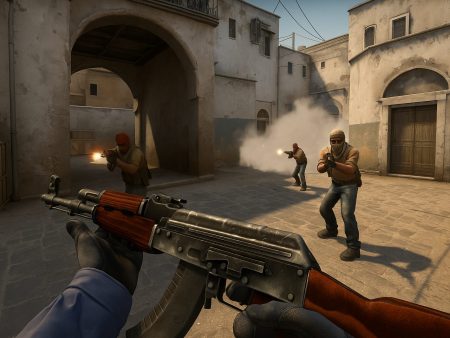
Discover the best viewmodel settings in CS2 to boost your aim, visibility, and overall performance. Learn pro player setups, customization tips, and console commands in this complete guide.

If you’re new to CS2 or even if you’ve been playing for a while, you might’ve come across the term viewmodel and wondered, “What even is that?” Let’s break it down. In Counter-Strike 2, the viewmodel refers to how your in-game weapon is displayed on your screen — basically, how you see your hands and gun while playing. It includes the position, angle, and scale of the gun relative to your screen’s field of view (FOV).
Why does this matter? Because this visual representation can actually affect your performance. While it doesn’t change the weapon’s actual stats or hitbox, your viewmodel has a huge psychological and visual impact. A clunky or distracting gun placement can take up unnecessary screen space, reduce visibility of enemies, or just feel uncomfortable during high-stress moments. Think of it like trying to drive a car with the dashboard blocking part of your windshield — not ideal, right?
CS2 offers a range of customization options to fine-tune your viewmodel to match your playstyle. Whether you’re a rifler, an AWPer, or just someone who wants a clean setup, viewmodel tweaks can offer small but significant advantages. Some players even say that the right viewmodel can give them more confidence, reduce distractions, and improve aim tracking — especially in fast-paced duels.
So, while it might seem like a minor cosmetic change, the viewmodel actually plays a subtle but vital role in how you see, aim, and react in the game. Now that you understand what it is, let’s dive deeper into how you can manipulate it to your advantage.
Why Viewmodel Settings Matter for Performance and Aim
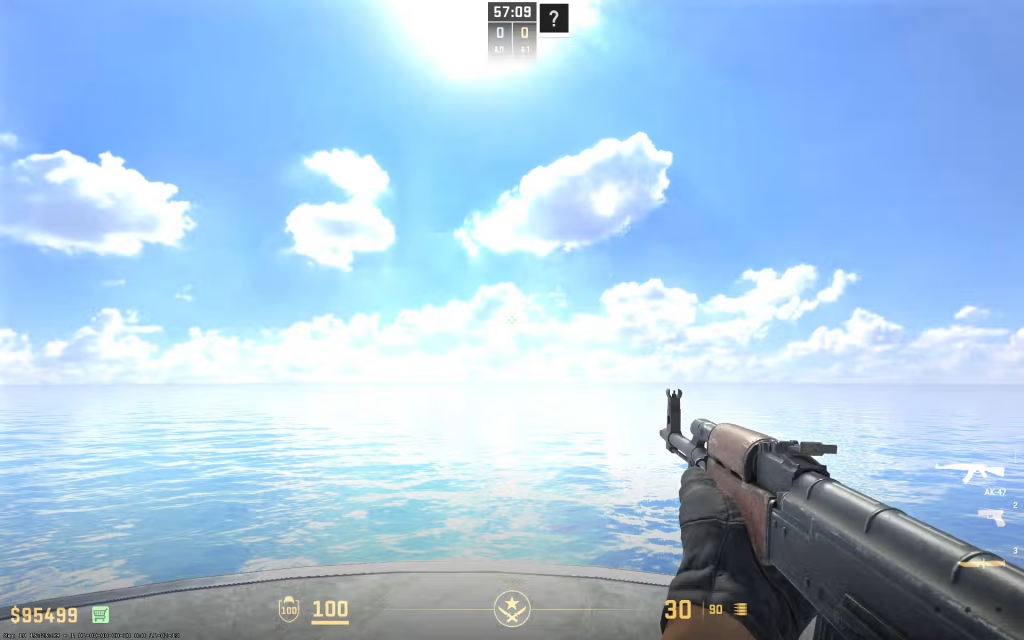
Here’s a truth bomb: your viewmodel isn’t just a cosmetic preference — it can directly impact your aim, movement, and awareness. In a game like CS2 where milliseconds matter, visibility is everything. The way your gun is positioned on your screen could mean the difference between spotting an enemy shoulder peeking a corner… or missing it entirely.
Here’s how viewmodel settings can affect gameplay:
- Increased Visibility: A minimal viewmodel allows you to see more of the screen, especially the lower right-hand side where weapons usually sit.
- Less Distraction: A centered or tightly adjusted viewmodel reduces unnecessary hand and weapon movement that might pull your attention during sprays or flicks.
- Better Crosshair Alignment: Some players like to align their weapon barrel closer to the center so it “feels” more intuitive when aiming.
- Muscle Memory: A consistent viewmodel helps develop muscle memory for peeking angles, lining up smokes, and controlling recoil patterns.
- Reduced Visual Clutter: A cleaner HUD and viewmodel create a calmer visual environment, which helps with focus — particularly in clutch situations.
On the flip side, poorly configured viewmodels can obstruct vision, mess with depth perception, and even cause discomfort. That’s why pros and high-ranking players often spend hours fine-tuning their settings until everything just feels “right.”
Think of it like customizing your workspace. You wouldn’t work with a monitor half-covered in sticky notes or a chair that’s too low. The same logic applies to viewmodels in CS2. Set it up for your maximum comfort and visibility — not just for what looks cool.
Understanding CS2’s Viewmodel Console Commands
How to Access the Developer Console
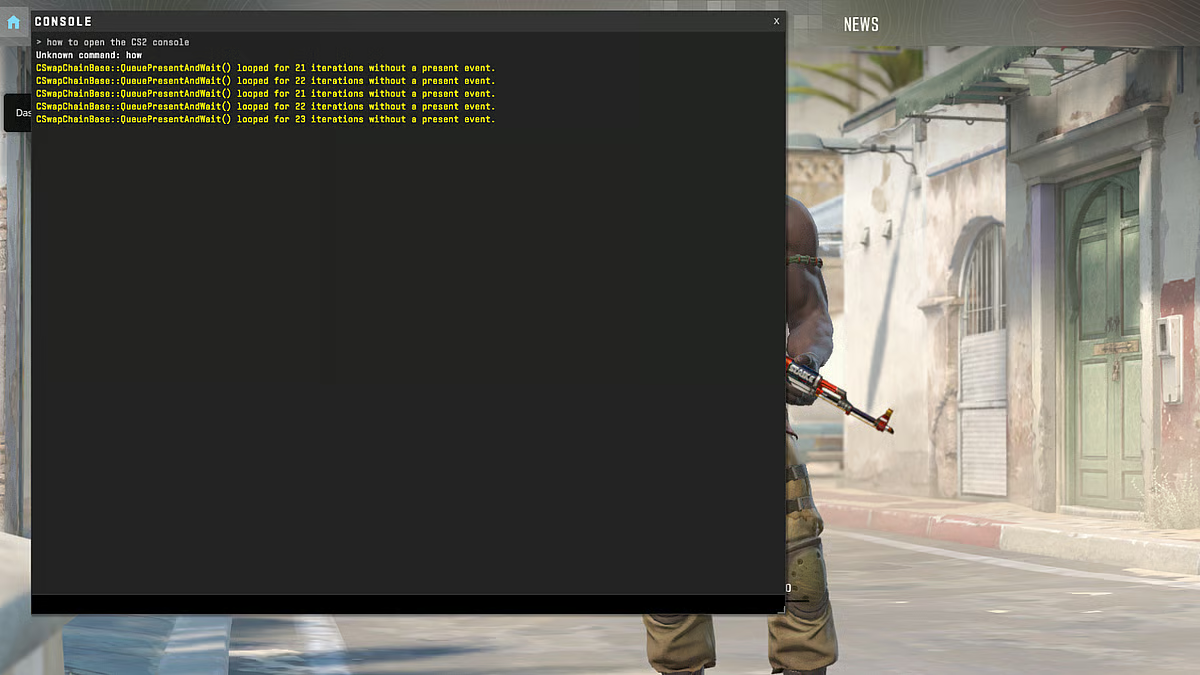
Before you start tweaking your viewmodel settings, you need to access the developer console in CS2. If you haven’t used it before, don’t worry — it’s super easy. The console is essentially a command line where you can type in specific codes to adjust the game settings instantly.
Here’s how to enable and open the developer console:
- Go to Settings > Game > Enable Developer Console (~)
Make sure this is set to “Yes”. - Press the Tilde (~) Key on Your Keyboard
On most keyboards, it’s located below the ESC key. - Type in Commands and Press Enter
You’re now ready to start entering viewmodel commands!
Once you’re in, you can start experimenting with different values to see what works best. The console is the gateway to precision customization — not just for viewmodels, but for crosshairs, FPS commands, binds, and more.
Using the console gives you full control compared to limited in-game settings, especially when you’re aiming to find that perfect viewmodel layout tailored to your unique playstyle.
Key Viewmodel Commands Explained
Alright, here comes the meat of it. These are the most essential console commands for customizing your viewmodel in CS2:
viewmodel_fov
Controls how far the weapon is held from your screen. Range: 54–68.- Lower value = closer to the screen (more immersive, less visibility).
- Higher value = further from the screen (better visibility, less immersion).
viewmodel_offset_x
Moves the weapon left or right. Range: -2 to 2.5- Negative values shift the weapon left.
- Positive values shift it to the right.
viewmodel_offset_y
Moves the weapon forward or backward. Range: -2 to 2- Negative values bring the gun closer.
- Positive values push it away.
viewmodel_offset_z
Moves the weapon up or down. Range: -2 to 2- Negative = lower gun position.
- Positive = higher gun placement.
cl_bob_lower_amt
Reduces the movement (bobbing) of the weapon when you walk.- Lower values = less screen movement.
cl_bobamt_latandcl_bobamt_vert
Controls how much the gun bobs side-to-side and vertically.- Recommended: Keep both values low for a stable screen.
These commands can be combined to create a custom viewmodel that reduces distractions, maximizes screen space, and helps you stay locked onto your enemies. We’ll show you the best combinations in the next section, including settings used by the top pros.
The Most Popular Pro Player Viewmodel Settings
s1mple’s Viewmodel Settings
When it comes to CS2, no list of top players would be complete without mentioning s1mple. Known for his laser-sharp aim and calculated plays, s1mple’s viewmodel is as refined as his gameplay. He opts for a minimal, clean setup that doesn’t get in the way, allowing him to maximize focus and screen visibility.
Here are s1mple’s reported viewmodel settings:
viewmodel_fov "68"
viewmodel_offset_x "2.5"
viewmodel_offset_y "0"
viewmodel_offset_z "-1.5"
cl_bob_lower_amt "5"
cl_bobamt_lat "0.1"
cl_bobamt_vert "0.1"
Why these settings work:
- High FOV (68) keeps the gun away from the center, freeing up more space to spot enemies.
- Offset X at 2.5 pushes the gun to the right, preventing it from blocking vision on the left-hand side.
- Z offset at -1.5 drops the weapon lower on the screen, reducing visual obstruction.
- Minimal bob values reduce weapon movement when walking or running.
This viewmodel is designed for clarity and efficiency. It allows s1mple to stay hyper-focused on his crosshair, react quickly, and maintain perfect awareness — exactly what you’d expect from a world-class AWPer and rifler.
ZywOo’s Viewmodel Setup
ZywOo, another legendary name in the CS scene, takes a slightly different approach than s1mple, but with the same end goal: total control and clarity. His viewmodel is also minimal but leans slightly more centered, possibly for better control when switching between rifles and the AWP.
ZywOo’s known viewmodel settings include:
viewmodel_fov "64"
viewmodel_offset_x "1"
viewmodel_offset_y "1"
viewmodel_offset_z "-1"
cl_bob_lower_amt "5"
cl_bobamt_lat "0.1"
cl_bobamt_vert "0.1"
Why it works for ZywOo:
- A slightly lower FOV (64) brings the gun closer, providing a more centered feel.
- Balanced offsets offer a compromise between visibility and control.
- Standard bob values help maintain muscle memory and reduce distraction.
ZywOo’s style is calculated and methodical — this viewmodel supports that by keeping things simple and stable. It’s a great setup for players who like switching between aggressive and passive playstyles.
NiKo’s Preferred Viewmodel Settings
NiKo is known for his precise aim and aggressive rifling. His viewmodel reflects his need for speed and precision. He’s not one for flashy settings — just pure efficiency.
NiKo’s typical viewmodel settings look like this:
viewmodel_fov "68"
viewmodel_offset_x "2"
viewmodel_offset_y "2"
viewmodel_offset_z "-1"
cl_bob_lower_amt "5"
cl_bobamt_lat "0.1"
cl_bobamt_vert "0.1"
Why NiKo uses these settings:
- Max FOV ensures full visibility.
- Offset X and Y at 2 push the gun out of the way without making it feel unnatural.
- Again, minimal bob for smooth tracking and less movement interference.
If you’re a rifler who likes to take duels often and move fast, NiKo’s viewmodel is a great starting point. It emphasizes confidence, speed, and control.
Comparison Table of Top Pro Viewmodels
| Player | FOV | X Offset | Y Offset | Z Offset | Bob Lat/Vert |
|---|---|---|---|---|---|
| s1mple | 68 | 2.5 | 0 | -1.5 | 0.1 / 0.1 |
| ZywOo | 64 | 1 | 1 | -1 | 0.1 / 0.1 |
| NiKo | 68 | 2 | 2 | -1 | 0.1 / 0.1 |
This comparison shows that there’s no one-size-fits-all, but a trend does emerge: high FOV, low bob, and off-center weapon placement. It’s all about reducing distractions while maximizing screen space and aim fluidity.
Best Viewmodel Settings for Competitive Advantage
Minimal Viewmodel for Maximum Visibility
Let’s say you’re playing Mirage and holding Connector with an M4. You peek Catwalk and — BAM — someone jumps out from the right. If your gun is taking up too much space on the right side of your screen, you might miss him for half a second. That half second can be the difference between life and death.
This is where the minimal viewmodel comes into play. It’s designed for players who want the absolute most visibility. Here’s a recommended minimal setup:
viewmodel_fov "68"
viewmodel_offset_x "2.5"
viewmodel_offset_y "2"
viewmodel_offset_z "-2"
cl_bob_lower_amt "5"
cl_bobamt_lat "0.1"
cl_bobamt_vert "0.1"
Advantages:
- Maximum screen space for spotting enemies.
- No weapon movement interference while moving or peeking.
- Ideal for riflers and entry fraggers who need to stay alert and fast.
Minimal viewmodels work especially well in clutch situations, where full awareness of your surroundings is vital. They also help players focus purely on the crosshair and environment, not the weapon animations.
The downside? Some players find minimal setups too bare or uncomfortable. It might take time to adjust if you’re used to a default view. But once you get the hang of it, it’s hard to go back.
Balanced Viewmodel for Casual & Ranked Play
If you’re not a pro player grinding FACEIT or ESL qualifiers, you might want a more balanced viewmodel — one that gives decent visibility but doesn’t completely strip away the aesthetics or immersion of the game.
Try this balanced viewmodel setup:
viewmodel_fov "65"
viewmodel_offset_x "1.5"
viewmodel_offset_y "1"
viewmodel_offset_z "-1"
cl_bob_lower_amt "5"
cl_bobamt_lat "0.25"
cl_bobamt_vert "0.25"
Why this is ideal for casual players:
- Keeps the game looking good while enhancing visibility.
- A bit of bobbing makes movement feel more natural.
- Comfortable for long sessions — not too aggressive, not too minimal.
This is a solid middle ground if you’re playing with friends, running community servers, or mixing ranked games without trying to go full try-hard mode. It’s also great for people new to CS2 and not ready to make drastic changes.
Dynamic vs Static Viewmodel – Which One to Use?
Here’s a feature many players overlook: dynamic vs static viewmodels. This setting determines whether your weapon moves around a lot when you’re running or jumping. You can toggle it using:
cl_viewmodel_shift_left_amt "0"
cl_viewmodel_shift_right_amt "0"
To completely disable viewmodel shifting, enter those two commands with values of “0”. This creates a static viewmodel where the weapon remains stable, no matter how you’re moving.
Why static viewmodel helps:
- Keeps your aim zone clear.
- No distraction during fast movement or spray transfers.
- Ideal for high-level play and precision aiming.
On the other hand, dynamic viewmodel adds more “feel” to your movement. Some casual players prefer this because it feels more immersive or realistic.
So, which should you choose?
- Static if you value focus and clarity.
- Dynamic if you enjoy a more immersive visual experience.
Most pros go with static, and that’s also what we recommend if you’re serious about climbing ranks.
Customizing Your Viewmodel for Different Playstyles
Aggressive Entry Fraggers
If you’re the type of player who’s always charging into sites, flashing through smokes, and taking the first peek — congrats, you’re likely the entry fragger. And your viewmodel should reflect that aggressive, fast-paced style. For this role, you need maximum screen clarity and minimal distractions, so you can react faster and spot enemies first.
Recommended viewmodel:
viewmodel_fov "68"
viewmodel_offset_x "2.5"
viewmodel_offset_y "2"
viewmodel_offset_z "-2"
cl_bob_lower_amt "5"
cl_bobamt_lat "0.1"
cl_bobamt_vert "0.1"
Why this works:
- High FOV and extreme offsets maximize the amount of visible screen real estate.
- Low bobbing ensures the weapon doesn’t bounce around and distract you.
- Pulled down (Z offset -2) to keep vision clear around smokes, edges, and tight angles.
Aggressive players benefit most from a viewmodel that prioritizes speed, reaction time, and awareness. You don’t have time for cosmetics or floating guns. Every millisecond counts, and this setup gives you the best chance to react instantly and win your duels.
Lurkers & Strategic Players
Lurkers — like CS legends GeT_RiGhT or sh1ro — play a totally different game. They don’t rely on speed as much as they rely on positioning, sound cues, and perfect timing. For them, a more centered and calm viewmodel works best — one that gives good peripheral vision and doesn’t distract during those long moments of holding an angle.
Try this setup:
viewmodel_fov "64"
viewmodel_offset_x "1"
viewmodel_offset_y "1"
viewmodel_offset_z "0"
cl_bob_lower_amt "5"
cl_bobamt_lat "0.15"
cl_bobamt_vert "0.15"
Why it’s ideal:
- A lower FOV gives a focused field of view.
- Balanced offsets keep the weapon centered and calm.
- Slight movement in the weapon adds immersion and helps with timing visuals.
Strategic players tend to favor consistency over flashiness. If you’re holding Tunnels in Dust 2 or baiting a rotation, this viewmodel keeps your screen clean but still immersive. It helps you concentrate on audio and movement patterns instead of flashy weapon swings.
AWPers & Long-Range Shooters
For AWPers, the name of the game is pixel-perfect precision and maximum screen awareness. Since AWPers often need to quickly adjust their scope, hold long angles, and react to peeks, their viewmodel must not interfere with their vision — especially on the right-hand side.
Recommended AWPer viewmodel:
viewmodel_fov "68"
viewmodel_offset_x "2.5"
viewmodel_offset_y "2"
viewmodel_offset_z "-2"
cl_bob_lower_amt "5"
cl_bobamt_lat "0.05"
cl_bobamt_vert "0.05"
Why it works:
- Weapon is pushed far right and down, clearing your scope line and the left side of your screen.
- Minimal bobbing to reduce camera shake.
- Perfect for holding long sightlines like Mid on Dust2 or Banana on Inferno.
This setup is purely functional and makes AWP flicks, holds, and wide peeks feel smoother. The clearer your view, the faster your reactions can be — and that’s exactly what this setup aims to provide.
The Role of FOV in Your Viewmodel
Best FOV Settings for Awareness
Your Field of View (FOV) setting is like your camera lens in CS2. The higher it is, the wider your “lens” becomes. The lower it is, the tighter and more focused your screen appears. The default maximum allowed in CS2 for viewmodel_fov is 68 — and many pros max it out for a reason.
Here’s what each range does:
- 54–60: Tighter view, weapon appears closer, more immersive but limits visibility.
- 61–64: Balanced view — not too zoomed in, not too wide.
- 65–68: Wide-angle view, weapon further from screen, maximizes visibility.
Most high-level players go for 68, and here’s why:
- More peripheral vision, especially for shoulder-peeking enemies.
- Weapon doesn’t block your lower right corner, useful when holding off-angles.
- Feels “lighter”, almost like there’s nothing between you and your crosshair.
In short, if you want every inch of your screen to matter, crank the FOV up. The trade-off? Slightly less immersive visuals — but if you’re playing competitively, that’s hardly a concern.
Legal Limits of FOV in CS2
You might be wondering: Can I go higher than 68? Can I get a competitive edge with an FOV hack? The answer is no — and you shouldn’t try.
Valve has locked the viewmodel_fov to a hard cap of 68 to maintain a level playing field. Any attempts to override this using third-party software can result in VAC bans or matchmaking bans. It’s just not worth the risk.
For clarity:
- Max legal
viewmodel_fovis 68 - Min legal
viewmodel_fovis 54 - This only affects the weapon’s position — not your actual player FOV or enemy visibility.
This is important because some players confuse viewmodel FOV with the actual gameplay FOV. They are separate. You’re not seeing more of the map — just seeing more space around your weapon. And in competitive CS2, that’s exactly what you want.
How Viewmodel Affects Recoil and Spray Control
Visual Distractions and Muscle Memory
Recoil in CS2 is mostly muscle memory. But your viewmodel can mess with that if it’s bouncing all over the screen or sitting too high. Imagine trying to track a spray while your weapon is bobbing side-to-side or covering your crosshair. Not ideal, right?
A stable viewmodel improves recoil tracking, especially when doing long sprays with rifles like the AK or M4. Here’s how:
- Static weapon positioning means your eyes focus more on the crosshair.
- Lowered gun models reduce visual clutter when firing.
- Minimal bob helps keep your attention on the spray pattern, not on the screen wobble.
So if you’re struggling with recoil control, try adjusting your viewmodel to remove unnecessary animation and movement. You’ll find that your sprays start feeling smoother, and your aim correction becomes more intuitive.
Aligning Viewmodel with Crosshair for Better Control
Some players prefer to align their gun barrel closer to their crosshair. Why? Because it provides a psychological aid for aiming. The barrel acts as a reference point, especially when pre-aiming or tracing corners.
To do this:
- Reduce X offset (e.g., 0.5 or even negative values).
- Reduce Z offset to bring the weapon closer to the middle.
- Try lower FOV (like 60–64) for a tighter, centered view.
This works particularly well for players who:
- Like close-range duels.
- Use the AK-47 or M4 for headshot accuracy.
- Prefer more “center-weighted” aim strategies.
This isn’t for everyone, but if you’re someone who relies on precise crosshair placement and flick control, try aligning your viewmodel a little closer to the center and see how your comfort level changes.
Tips to Test and Optimize Your Viewmodel
Using Practice Configs and Maps
Before locking in your ideal viewmodel, it’s smart to test things out in a controlled environment — without the pressure of a live game. The best way to do this is by using practice maps and custom configs.
Here’s how to get started:
- Download a Viewmodel Practice Map from the Steam Workshop
Popular maps like “Recoil Master – Viewmodel Generator” or “Crashz Viewmodel Generator” let you try different settings with instant feedback. - Use Practice Console Commands
Enable cheats in your local game (sv_cheats 1) and use commands like: (sv_infinite_ammo ). These help you move freely and test aim, recoil, and movement with your custom viewmodel.
- Try Each Role’s Setup
Load up different viewmodel presets (AWP, entry, lurk) and simulate real game scenarios. This helps you figure out which layout feels the most natural.
Testing is crucial because what works for pros might not work for you. Your mouse sensitivity, monitor size, FOV preference, and playstyle all factor into the perfect viewmodel. Make testing part of your warm-up — treat it like calibrating a weapon.
Recording Demos to Analyze Your Comfort
Sometimes, the best way to identify what’s wrong with your viewmodel is by watching yourself play. CS2’s demo system allows you to record and analyze matches, scrims, or even deathmatches.
To record a match:
record myviewmodeltest
Later, use:
playdemo myviewmodeltest
Watch how your weapon moves, how much screen space it takes up, and whether you miss any visual cues or enemy movements. Ask yourself:
- Does the weapon block any corner peeks?
- Is it distracting when spraying?
- Are bobbing or swaying movements causing visual noise?
By being your own coach, you’ll spot discomforts that might not be obvious during gameplay. Small adjustments can lead to big improvements — especially if they help you stay laser-focused on your crosshair and surroundings.
Creating Your Own Config File for Viewmodel Settings

Autoexec.cfg Setup Guide
Tired of entering your viewmodel settings every time CS2 launches? That’s where the autoexec.cfg file comes in. It’s a custom configuration file that loads automatically when you launch the game — keeping all your preferred settings intact.
Here’s how to set it up:
- Go to Your CS2 Directory
Example:C:\Program Files (x86)\Steam\steamapps\common\Counter-Strike Global Offensive\game\csgo\cfg - Create a New Text File
Name itautoexec.cfg. Make sure the file extension is.cfg, not.txt. - Add Your Viewmodel Settings
Example:
viewmodel_fov "68"
viewmodel_offset_x "2.5"
viewmodel_offset_y "2"
viewmodel_offset_z "-2"
cl_bob_lower_amt "5"
cl_bobamt_lat "0.1"
cl_bobamt_vert "0.1"
Launch Options
In Steam, go to CS2 properties and add this to launch options:
+exec autoexec.cfg
Now every time you launch CS2, your viewmodel loads automatically — no more typing in commands.
Commands to Save and Load Viewmodel Settings
Want to test multiple viewmodels without changing your autoexec every time? Create separate config files like awpview.cfg, rifleview.cfg, etc., then use these commands in the console:
To load:
exec awpview
To save current settings:
host_writeconfig mycustomview
This gives you a flexible system that adapts to how you play on any given day — no more manual tweaks mid-game.
Combining Viewmodel Settings with Crosshair for Maximum Effect
Matching Colors, Sizes, and Positions
Viewmodel settings and crosshair settings are two sides of the same coin. When customized together, they create a cohesive, distraction-free interface that feels natural and sharp.
Tips for synergy:
- Use bright crosshair colors like cyan, green, or pink to stand out from map textures.
- Align your weapon model so it doesn’t overlap or shadow your crosshair.
- Avoid large weapons (like shotguns) blocking your sight — move them lower and right with
viewmodel_offset_zandx.
Having a clear and visible crosshair, paired with a minimal viewmodel, enhances your target acquisition speed and reduces errors in high-pressure situations.
Pro-Level Visual Sync for Focus and Accuracy
Want to feel like your screen was built for headshots? It’s all about visual balance. Some advanced players tune their crosshair and viewmodel to work in tandem — like aligning the weapon barrel just below or beside the crosshair.
This visual “anchor” can:
- Aid flicks and tracking.
- Help maintain center-screen discipline.
- Make muscle memory more reliable in spray transfers.
Combine that with consistent weapon placement and stable recoil visuals, and you’ve got a setup that’s not just pretty — it’s deadly effective.
Conclusion
Your viewmodel settings in CS2 might seem like a tiny tweak, but in a game where millimeters and milliseconds matter, even the smallest edge can separate the good from the great. From s1mple’s hyper-minimal view to ZywOo’s balanced approach, pro players understand how crucial visual clarity is — and you should too.
There’s no “perfect” viewmodel for everyone. It depends on your role, your style, and your comfort. But now, you have the tools, commands, and examples to find the settings that give you confidence and control.
Take time to test. Record your play. Fine-tune your offsets. Because once your screen feels just right, your gameplay will start to reflect it.
FAQs
What is the best viewmodel for AWPing?
The best viewmodel for AWPing is one that clears the right side of the screen. Use high FOV (68) and set viewmodel_offset_x 2.5, y 2, and z -2 to keep the gun out of your sightline.
Can changing viewmodel improve aim?
Yes. A clean viewmodel reduces distractions and helps you focus on the crosshair, improving aim precision, especially in tense spray fights or fast flicks.
Are pro viewmodels better than custom ones?
Not always. Pros configure their viewmodels based on personal preference. Use them as a starting point, then adjust for what feels most natural for you.
Is viewmodel just personal preference?
Largely yes — but it can affect gameplay. While there’s no “best” setting, some configurations do offer better visibility and control, especially in competitive play.
How do I reset viewmodel to default?
Use the following command to revert to CS2’s default viewmodel: viewmodel_fov 60; viewmodel_offset_x 1; viewmodel_offset_y 1; viewmodel_offset_z -1