Discover the best CS2 launch options to boost FPS, reduce lag, and optimize performance. This complete 2025 guide breaks down every useful command for casual and competitive players alike.

Counter-Strike 2, or CS2, is Valve’s next-gen upgrade to the legendary Counter-Strike: Global Offensive (CS:GO), rebuilt using the Source 2 engine. It retains the core tactical gameplay that made CS:GO an esports staple but brings a complete visual overhaul, improved server responsiveness, and updated mechanics that refresh the game for the next decade.
If you’ve been part of the CS community, you’ll recognize how important even the smallest tweaks can be. That’s where launch options come in—they help tailor the game to your system’s needs and your playstyle preferences. With Source 2 under the hood, CS2 introduces new parameters while keeping some old ones relevant. And if you’re serious about getting the best performance, smoother visuals, and faster loading times, understanding these settings is crucial.
But what are launch options exactly? In simple terms, they are commands you add when starting the game via Steam, giving the engine specific instructions before it even begins. Want to skip the intro video? You can. Prefer your CPU to prioritize CS2 above everything else? There’s a command for that, too.
In this article, we’ll break down every important CS2 launch option, explain what each does, and show you how to set them up for max performance, especially if you’re looking for that competitive edge.
Why Launch Options Matter in CS2
You might think launch options are just small tweaks, but in a high-stakes, reflex-driven game like CS2, every millisecond counts. Whether you’re trying to improve your FPS, reduce input lag, or ensure consistent tickrate performance, launch options can make a measurable difference.
Here’s why they matter:
- Performance Optimization: Some launch options help you unlock higher frame rates or stabilize them, which is vital for competitive play.
- System Efficiency: Launch options can allocate more system resources (like CPU threads) to CS2, helping your game run smoother.
- Convenience: Skip startup videos, set default refresh rates, or disable unneeded hardware—launch options save time and system load.
- Personalization: You can tailor your game launch environment for streaming, competitive play, or casual fun.
Think of them as the secret settings that aren’t available in the in-game menu but can dramatically alter how your game feels and performs. In CS2, which demands precision and speed, these hidden tools could be the difference between a clean headshot and a frustrating whiff.
How to Set CS2 Launch Options
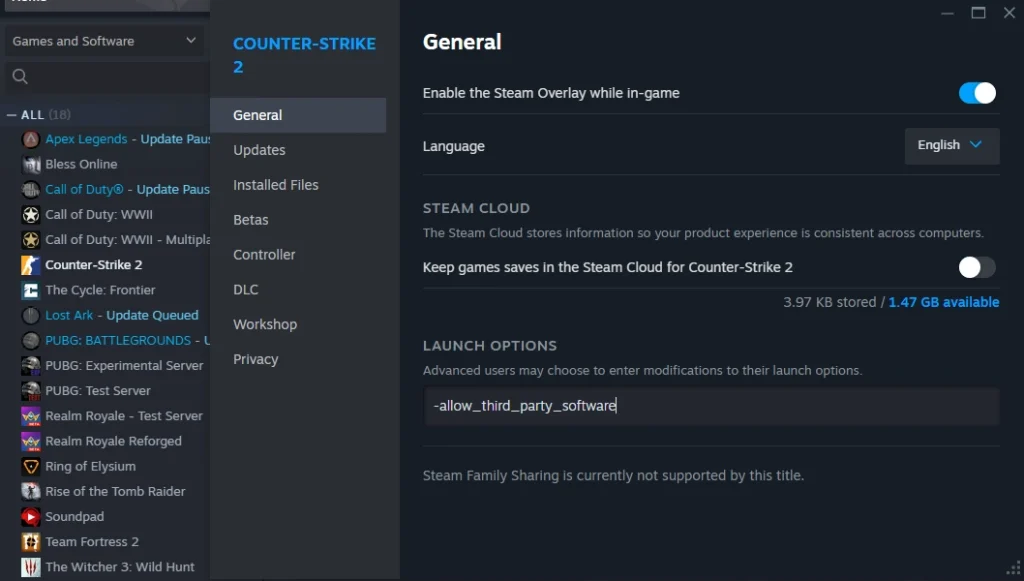
Step-by-Step Guide to Accessing Launch Options in Steam
Before we get into which launch options you should be using, let’s walk through the basics of how to actually apply them.
- Open Steam and go to your Library.
- Find Counter-Strike 2 in your game list.
- Right-click on it and select “Properties.”
- Under the “General” tab, you’ll see a field labeled “Launch Options.”
- This is where you type in your custom commands, separated by a space.
For example, if you want to launch CS2 in high priority and skip the intro video, you’d enter:
-high -novid
No need to use quotes or commas—just type them straight into the box. Steam will remember your settings unless you delete or change them.
Pro Tip: It’s best to add only a few launch options at a time and test your performance. That way, you know which ones are helping and which might be causing problems.
Best Practices Before Changing Launch Settings
Before you go all in and copy a giant string of launch commands from Reddit or YouTube, take a step back. Here are a few best practices that will save you headaches:
- Backup Your Settings: If you’re combining launch options with autoexec.cfg or config files, save backups.
- Update Your Drivers: Launch options won’t fix performance issues caused by outdated GPU or system drivers.
- Check Your System Specs: Some commands (like -threads or -refresh) depend on your actual hardware—don’t use values your system doesn’t support.
- Avoid Conflicts: Adding contradictory commands (e.g., forcing different resolutions) can lead to crashes or performance dips.
- Monitor Changes: Use tools like MSI Afterburner or built-in Steam FPS counters to track improvements or problems.
Remember, there’s no one-size-fits-all setup. What works for a streamer with a high-end RTX card may crash a budget laptop. Go slow, test often, and keep things clean.
Must-Know CS2 Launch Options for Better Performance
-high
This simple command tells your operating system to treat CS2 as a high-priority process. That means it’ll get more of your CPU’s attention, pushing background apps (like browsers or Discord) to the back seat.
Here’s what it looks like:
-high
Why use it?
- Reduces stutter caused by CPU load.
- Keeps CS2 smooth during multi-tasking.
- Slightly improves responsiveness and frame pacing.
It doesn’t magically double your FPS, but in a competitive shooter like CS2, those small boosts matter. Especially during hectic bomb-site holds or chaotic retakes.
Things to watch for:
- If you’re streaming or running heavy background programs, this might cause lag elsewhere (like your webcam or Discord).
- Doesn’t work miracles on severely underpowered CPUs.
Best used in combination with other performance-oriented launch options.
-novid
We all know that intro Valve video—cool the first time, but after 10 matches? Not so much.
-novid
This command skips the startup video, getting you into the game faster. It doesn’t improve FPS, but it saves time and avoids the awkward alt-tab moments when you accidentally launch CS2 during a Discord call.
Perfect for anyone who jumps in and out of the game frequently, or just wants to get to the action without fluff.
-tickrate 128
If you’ve played on Faceit, ESEA, or custom servers, you know the gold standard is 128 tickrate. By default, CS2 runs matchmaking servers at 64 tick, but you can use this launch option to set your local servers (like practice or workshop maps) to 128 tick.
-tickrate 128
Why is this useful?
- It simulates the same responsiveness and feel you’ll get on third-party competitive platforms.
- Grenade practice and movement timing will better reflect actual 128 tick server performance.
But here’s the catch: this doesn’t change matchmaking servers. Valve’s MM still uses 64 tick (as of now). So don’t expect miracles in official matches—this is purely for offline use or community servers that support it.
Great for:
- Practicing nades with accurate timing.
- Hosting smoother private games with friends.
- Aligning your training with pro settings.
-nojoy
Another small but effective tweak. This one disables joystick support, which most players never use.
-nojoy
Why bother? Because even if you don’t use a joystick, CS2 still loads support for it by default—using up about 10MB of RAM and a bit of processing power.
It’s a tiny gain, but when you stack it with other optimizations, it helps. Especially for lower-end machines or for those pushing ultra-high frame rates.
Key benefits:
- Slightly faster game boot time.
- Minor memory usage savings.
- Reduces unnecessary hardware polling.
For 99.9% of players, it’s a set-it-and-forget-it kind of option.
Advanced CS2 Launch Options for Experienced Players
-threads [Number]
This one lets you manually assign how many CPU threads CS2 can use. Most modern processors have 4, 8, or even 16 threads, and CS2 generally does a good job of managing them. But you can still override it.
Example:
-threads 8
This tells CS2 to utilize up to 8 threads. If your system has 8 cores or 4 cores with 8 threads (like a Ryzen 5 3600), this can help spread the game load more efficiently.
When is this useful?
- When CS2 isn’t fully using your CPU by default.
- If you’re multitasking and want to control how much power CS2 gets.
- For benchmarking or testing performance limits.
Warning: Misusing this (like setting it too high or too low) can cause crashes or worse performance. Use only if you know your hardware.
To find your CPU thread count:
- Press Ctrl + Shift + Esc > Task Manager > Performance > CPU.
+fps_max [Number]
This is a framerate limiter, and it can be vital in preventing screen tearing, overheating, or GPU overwork.
Example:
+fps_max 300
Sets the max framerate to 300. Useful if your monitor refresh rate is 144Hz or 240Hz, and you want consistent frames just above that.
You can also use:
+fps_max 0
This uncaps your FPS completely. Might sound great, but it can cause unstable frame delivery, coil whine, or even crash low-end PCs.
Best settings:
- For 60Hz monitors: +fps_max 144
- For 144Hz monitors: +fps_max 240
- For 240Hz monitors: +fps_max 360
Keep in mind: FPS consistency is more important than raw numbers. It’s better to get 240 stable than 500 fluctuating between 300–600.
-refresh [Hz]
This command forces the game to use your monitor’s refresh rate, which is key if CS2 isn’t detecting it properly.
Example:
-refresh 144
This sets the refresh rate to 144Hz. You can replace the number based on your monitor’s spec (like 60, 120, 165, 240, etc.)
When to use it:
- If CS2 boots in 60Hz mode despite your monitor supporting higher.
- If you notice screen tearing or input lag.
- When dual-monitor setups cause weird refresh mismatches.
Important: Also make sure your Windows display settings and GPU control panel are set correctly—launch options won’t override those.
-nod3d9ex
This legacy command disables Direct3D 9Ex, which can marginally affect alt-tab speed and overlay behavior.
-nod3d9ex
While not as crucial on Source 2 (as it was in CS:GO), some players still report:
- Faster alt-tabbing
- Less issues with third-party overlays (like OBS or Discord)
- Slightly better windowed mode performance
It won’t boost FPS directly, but it’s a comfort tweak—especially for those who juggle tabs while playing.
Best CS2 Launch Options for Low-End PCs
Performance-Boosting Settings for Older Systems
If you’re gaming on a budget rig, don’t worry—CS2 is more optimized than CS:GO, but it’s still Source-engine-based, meaning there’s room to push for more FPS.
Here’s a sample string optimized for low-end PCs:
-high -novid -nojoy -tickrate 128 +fps_max 120 -threads 4 -d3d9ex -fullscreen
Let’s break down why it works:
- -high: Prioritizes game on your CPU.
- -nojoy: Frees up small but helpful memory space.
- -novid: Faster startup.
- -tickrate 128: Better offline testing.
- +fps_max 120: Prevents CPU overuse.
- -threads 4: Matches a quad-core processor.
- -fullscreen: Maximizes performance vs windowed/borderless.
Extra tips:
- Lower your resolution (e.g., 1024×768 or 1280×960).
- Turn off background programs.
- Use CS2’s in-game performance settings (shadows, effects, shaders) wisely.
Optimizing RAM and CPU Usage
Besides launch options, tweak your system to get every drop of power:
- Disable Windows Game Mode and Xbox DVR
- Use Process Lasso to force high CPU affinity
- Turn off background updates (Steam, Windows)
- Use low-latency GPU modes in NVIDIA/AMD settings
Launch options only go so far. For truly low-end systems, in-game settings, driver updates, and system optimization matter just as much.
Launch Options for High FPS in CS2
How to Uncap FPS and Get Consistent Frames
Want to squeeze every bit of performance from your system? Then you’ll want to uncap your FPS or set a custom cap that fits your monitor and hardware.
The go-to command:
+fps_max 0
This completely removes the FPS cap in CS2, allowing your hardware to push frames as fast as it can. But this isn’t always the best idea. Uncapped FPS can sometimes lead to:
- Screen tearing
- GPU overheating
- Inconsistent frame delivery
For a more stable experience, use:
+fps_max 240
This is ideal if you’re on a 240Hz monitor, keeping frame times consistent and aligned with your screen refresh rate.
Here’s how to find your sweet spot:
- Monitor Hz × 2 = Safe FPS limit
- For 144Hz, try
+fps_max 288 - For 60Hz, cap at
+fps_max 120or lower to reduce strain
Bonus Tips:
- Pair with
-fullscreenfor best results (not borderless). - Use in-game FPS counters (
cl_showfps 1) or external tools (MSI Afterburner, NVIDIA Overlay) to monitor changes.
Dealing with FPS Drops and Stuttering
Launch options can help with consistent performance, but FPS drops often come from system bottlenecks or background processes.
Try these combinations:
-nojoy— Removes unused joystick input overhead.-threads X— Assigns proper CPU usage.-high— Prioritizes CS2 process in the CPU queue.+mat_queue_mode 2— Forces multi-threaded rendering (can be added in autoexec too).
Also, consider your graphics driver settings:
- NVIDIA users can enable Low Latency Mode (set to Ultra).
- AMD users can enable Radeon Anti-Lag.
Memory leaks and caching issues can cause stutters too. Restart your PC occasionally and close heavy apps like Chrome while gaming.
In worst cases, lower in-game settings like:
- Shader Detail: Low
- Multisampling Anti-Aliasing: None
- Ambient Occlusion: Off
Even if you’ve got great hardware, launch options are still a part of maintaining smooth, responsive gameplay.
CS2 Launch Options to Avoid
Deprecated or Risky Launch Commands
Over the years, many commands from CS:GO have either been deprecated or no longer affect Source 2 properly. Using them can:
- Cause launch failures
- Waste system resources
- Create unexpected performance issues
Avoid these outdated commands:
-lv— Used for low violence in earlier versions; does nothing now.-autoconfig— Resets all settings, not useful for daily play.-dxlevel— DirectX level is now managed internally in CS2.-noborder— Has little to no effect in CS2’s new window management.
You should also be careful with -fullscreen vs -windowed vs -borderless. Conflicting display commands can cause black screens or crash loops.
Pro Tip: When testing launch options, always add one at a time to isolate issues.
Myths Around Certain Launch Parameters
There’s a lot of noise out there about “magic” launch options that can boost FPS by 100 or reduce input lag to zero. Let’s bust some myths:
- “-tickrate 128 helps in matchmaking” – False. Valve MM is still 64 tick. This only affects offline and custom servers.
- “-high makes your game run like a pro’s” – Not always. If your system is underpowered or you multitask, this can cause freezes elsewhere.
- “Using 20+ launch options is always better” – Nope. Some commands conflict or offer zero benefit depending on your system.
Use only what you need. A bloated launch string can sometimes hurt more than help.
Customizing Launch Options Based on Playstyle
Competitive vs Casual Setup
Your launch options should reflect how you play the game. A competitive grinder needs speed, precision, and FPS stability, while a casual player might prioritize visuals and comfort.
Competitive Player Loadout:
-high -novid -nojoy -tickrate 128 +fps_max 300 -threads 8 -fullscreen
- High priority
- FPS cap to match high-refresh monitors
- Minimal distractions
Casual Player Loadout:
-novid -nojoy +fps_max 120 -fullscreen
- Still fast, but no need to go overboard
- Keeps visuals clean and stable
Key differences:
- Competitive setups push system limits.
- Casual setups balance quality with smoothness.
And if you stream? Then your CPU/GPU balancing act needs a custom approach…
Streaming vs Playing Only
If you’re using OBS or similar tools to stream CS2, your system is doing double duty. Launch options here must balance performance and stability.
Recommended for streamers:
-nojoy -novid -threads 4 +fps_max 144 -fullscreen
Avoid -high since OBS might fight for priority.
Cap FPS to keep CPU/GPU temps manageable.
Let OBS have enough threads to encode smoothly.
Also:
- Run OBS as Admin.
- Lower in-game graphics to free GPU headroom.
- Use NVENC if you have an NVIDIA card.
Streaming with the right launch setup ensures no choppy output, fewer dropped frames, and a better viewing experience for your audience.
Combining Launch Options – The Right Way
Example Setup Strings
Once you’ve figured out which launch options work best for your system, it’s time to combine them into a single, efficient launch string. The format is simple: just stack your commands with a space between each.
Here are 3 optimized examples based on different setups:
1. Pro/High-End Setup
-high -novid -nojoy -tickrate 128 +fps_max 300 -threads 8 -refresh 240 -fullscreen
2. Mid-Tier Gaming PC
-high -novid -nojoy -tickrate 128 +fps_max 144 -threads 4 -refresh 144 -fullscreen
3. Budget/Low-End PC
-novid -nojoy +fps_max 90 -threads 2 -fullscreen
Customize these by adjusting the +fps_max, -threads, and -refresh values to match your actual hardware specs.
Tips for success:
- Keep your string clean—remove unused or outdated commands.
- Make changes one at a time and test after each.
- Use the in-game console to monitor FPS and responsiveness.
Testing and Tweaking for Best Results
Once you’ve entered your launch options, test your setup in real-world conditions. Don’t just rely on the FPS counter—focus on how the game feels.
Things to test:
- Startup Time – Does the game boot faster?
- In-Game FPS – Is it stable or fluctuating wildly?
- Alt-Tab Speed – Does the game handle switching smoothly?
- Input Lag – Are your mouse clicks responsive?
You can also run custom benchmark maps or use the built-in FPS overlay:
cl_showfps 1
or use
net_graph 1
to get a detailed view of performance stats.
Don’t be afraid to iterate. What works for one system or update might not work after a patch. Keep your setup dynamic and stay informed about any CS2 engine changes.
Common Mistakes When Using Launch Options
Conflicting Commands
One of the most common issues players face is adding conflicting or redundant commands that cancel each other out or crash the game.
Here are examples of conflicts to avoid:
- Using
-fullscreenwith-windowedor-nobordertogether. - Setting
+fps_max 0while trying to limit FPS in-game. - Using
-threadsvalues higher than your CPU supports.
When commands overlap, CS2 may pick the first one, ignore both, or behave unpredictably. It’s like giving your car gas and brake at the same time—confused performance is inevitable.
Solution: Use a clean, simplified launch string. Test each new command on its own before combining it with others.
Overloading with Unnecessary Flags
More isn’t always better. Some players copy huge launch strings from forums or streamers without understanding what they do.
This leads to:
- No benefit or, worse, lower performance.
- Game instability or crashes.
- Difficulty troubleshooting because too many variables are involved.
Ask yourself:
- Does this command apply to my system?
- Is it outdated or from CS:GO?
- Have I tested its effect?
Strip your launch options down to only what’s essential. Lean, tested setups always outperform bloated ones.
How Launch Options Impact Matchmaking and Server Performance
Does -tickrate 128 Actually Help in MM?
One of the most misunderstood commands in all of Counter-Strike.
-tickrate 128
This command only sets the tickrate for offline servers, not official Valve matchmaking. So if you’re hoping to gain some edge in your MM matches with this… you’re out of luck.
What it does:
- Applies to local games, workshop maps, private servers.
- Useful for practicing smokes, peeks, and timing in 128 tick environments.
What it doesn’t do:
- It does not change the tickrate of official matchmaking servers (which remain 64 tick).
If you’re serious about competitive play on 128 tick, consider using:
- Faceit
- ESEA
- Private 128 tick servers
Client vs Server Settings Explained
Many launch options affect only your client-side performance, not the game server.
Here’s the breakdown:
Client-Side Launch Options (Performance & UI):
+fps_max-novid-nojoy-high-refresh
Server-Side (Affects Local Host Games Only):
-tickrate 128- Custom config files
- Game mode overrides
This means that performance and responsiveness can be improved, but actual gameplay mechanics like damage, recoil, and server-side lag won’t change unless you’re on a higher tick server.
Understanding this difference is key to setting realistic expectations.
Comparing CS2 Launch Options with CS:GO
What’s Changed in CS2?
CS2, powered by the Source 2 engine, has improved handling of graphics, multithreading, and hardware detection. As a result, many legacy CS:GO launch options are no longer necessary—or even recognized.
Notable changes:
-dxlevelis now obsolete.- Multithreading is better managed by default.
- CS2 automatically detects refresh rates and resolutions more effectively.
That said, some commands still work as intended, especially those related to process priority, skipping intro videos, or capping FPS.
What stayed the same:
-novid+fps_max-tickrate 128-nojoy
These still offer value and can help tailor your CS2 experience.
Which Old Commands Still Work?
From CS:GO to CS2, several commands still hold their place:
| Command | Works in CS2? | Purpose |
|---|---|---|
| -novid | ✅ | Skips intro video |
| -high | ✅ | Sets high CPU priority |
| +fps_max | ✅ | Caps or uncaps FPS |
| -tickrate 128 | ✅ (offline) | Sets offline/server tickrate |
| -nojoy | ✅ | Disables joystick support |
| -fullscreen | ✅ | Forces fullscreen mode |
| -refresh | ✅ | Sets monitor refresh rate |
| -threads | ✅ | Assigns CPU threads (use with caution) |
Avoid using commands that CS2 has deprecated. Focus on what works now, not what worked in CS:GO.
Pro Players’ Recommended CS2 Launch Options
Insights from Top Streamers and Pros
Top-tier players often run streamlined launch setups, focusing on reliability and high FPS. Here are examples pulled from real setups used by competitive pros and streamers.
s1mple (NAVI):
-novid -tickrate 128 +fps_max 400 -high -fullscreen -refresh 240
ZywOo (Vitality):
-high -novid -nojoy +fps_max 300 -threads 8
shroud (Streamer/Ex-pro):
-novid -nojoy +fps_max 0 -refresh 240
What you’ll notice:
- They avoid overloading with 20+ commands.
- Focus is on FPS, screen responsiveness, and clean starts.
Take notes, but remember—what works for a $5000 rig might not work for yours.
Real-World Setup Examples
Here are two balanced examples for modern gaming PCs:
For Competitive Players:
-high -novid -nojoy +fps_max 360 -tickrate 128 -threads 8 -refresh 240
For Streamers:
-novid -nojoy +fps_max 144 -threads 4 -fullscreen
Each string is designed for a purpose—either raw competitive focus or balanced streaming performance.
Wrapping It All Up
Final Thoughts on Optimizing CS2 Launch Options
CS2 brings forward a new era of tactical shooter gameplay, but it also retains the deep customization that Counter-Strike veterans love. Launch options, when used wisely, can elevate your experience—making the game smoother, faster, and more in tune with your hardware.
Here’s a quick checklist:
- Choose launch options based on your PC specs and playstyle.
- Avoid outdated or unnecessary commands.
- Regularly test and tweak as updates roll out.
- Use minimalist strings for stability.
- Don’t copy pro setups blindly—adapt them to your own system.
Launch options are not a magic fix, but they are a powerful tool in your CS2 toolkit. Use them smartly, and you’ll not only enjoy better FPS—you’ll play more confidently and competitively.
FAQs
What launch options increase FPS the most?
-high, -nojoy, +fps_max, and -threads tend to offer the biggest gains depending on your system. Combined with in-game tweaks, they can greatly improve performance.
Can launch options get you VAC banned?
No. All discussed launch options are Steam-approved and do not interfere with VAC. Just avoid shady third-party software.
How often should I tweak launch settings?
After major game updates or hardware changes. Also, if you notice stuttering or new performance issues.
What’s the best full setup string for CS2 in 2025?
-high -novid -nojoy -tickrate 128 +fps_max 300 -threads 8 -refresh 240 -fullscreen