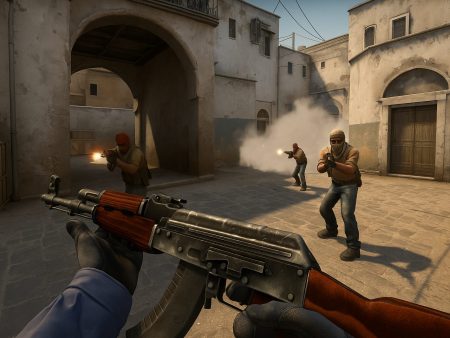
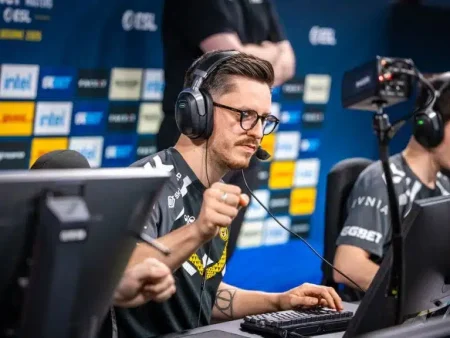
Discover the best mice, keyboards, and monitors for CS2 in 2025. Upgrade your competitive setup with top pro-recommended gear to boost aim, performance, and reaction time in Counter-Strike 2.

CS2, or Counter-Strike 2, is the much-anticipated successor to CS:GO, bringing with it a completely revamped Source 2 engine, improved graphics, sub-tick updates, and more refined gameplay mechanics. And with this evolution comes a higher demand for precision, responsiveness, and fluidity—especially for those aiming to climb the competitive ladder or go pro.
Let’s get real for a second: you can’t expect to frag out in CS2 if your gear is holding you back. Unlike casual shooters, CS2 punishes inconsistency. Every click, flick, and keypress matters. Whether you’re anchoring B site or pulling off a 1v3 clutch, your hardware needs to be just as sharp as your reflexes. That’s why your mouse, keyboard, and monitor aren’t just accessories—they’re your primary weapons.
Why CS2 Demands High-Performance Peripherals
Think of CS2 as a game of milliseconds. If your mouse stutters, your aim is off. If your keyboard doesn’t register a strafe tap, you’re a sitting duck. And if your monitor can’t keep up with fast motion, enemies might as well be teleporting. High-end peripherals bridge the gap between intention and execution. The precision you need in CS2 can’t be achieved with generic gear. You need peripherals that respond immediately, feel natural, and last through hundreds of hours of sweaty matchmaking.
Competitive Edge through Optimal Setup
Ever wonder why pro players obsess over their settings and gear? It’s because marginal gains stack up. A 360Hz monitor might only shave milliseconds off visual input lag, but in a high-stakes match, that could be the difference between life and death. A lightweight mouse could reduce hand fatigue and help you stay accurate over longer sessions. Mechanical switches with faster actuation can get that crouch-peek in a split second earlier than your opponent. Competitive CS2 is a game of inches, and your setup determines whether you gain or lose ground.
Best Mice for CS2
What Makes a Mouse Good for CS2?
Finding the perfect mouse for CS2 isn’t just about slapping down cash on the most expensive option. It’s about finding a mouse that aligns with your grip style, flick speed, and preferred sensitivity. The best CS2 mice have:
- High DPI with Adjustable Settings: While most CS players play at low DPI (usually 400–800), having precision tuning allows you to find your sweet spot.
- Low Latency & High Polling Rates: 1000Hz is the standard now, but newer mice are hitting 2000Hz or even 8000Hz for near-zero input delay.
- Lightweight Design: Faster swipes, quicker flicks, and less fatigue during long sessions.
- Ergonomic Comfort: Whether you’re claw, fingertip, or palm gripper, the shape should feel like an extension of your hand.
DPI & Polling Rate Considerations
DPI (dots per inch) affects how fast your cursor moves relative to your hand movement. While 400-800 DPI might sound low, it offers unmatched precision, especially when combined with a large mousepad and low in-game sensitivity. Polling rate determines how often your mouse sends data to your PC per second. A 1000Hz polling rate means the mouse reports its position 1000 times per second. CS2 players benefit immensely from higher polling rates because it reduces the lag between your physical movement and on-screen action.
Weight and Ergonomics
Gone are the days of heavy mice with unnecessary features. CS2 players love ultralight mice because they allow for faster, more accurate flicks and micro-adjustments. Sub-70g mice are ideal for most competitive players. On the ergonomic side, the mouse should fit snugly in your hand without forcing unnatural angles or causing cramping over time. A comfortable grip allows for consistent aim, which is crucial in a game like CS2 where spray control and flicking are core mechanics.
Top 5 Mice for CS2 in 2025
1. Logitech G Pro X Superlight 2
This is the gold standard for FPS gamers. Featherlight at around 60g, flawless HERO 2 sensor, and ultra-low latency wireless performance. It’s designed with pros in mind and built for serious fragging.
2. Razer Viper V2 Pro
Another wireless beast, the Viper V2 Pro is all about balance. Weighing in at 58g, with Razer’s Focus Pro 30K sensor and Gen-3 optical switches, this mouse is lightning fast and ultra-durable.
3. Zowie EC2-CW
For players who prefer an ergonomic shape and wired reliability, the EC2-CW from Zowie is a top-tier pick. It’s built for right-handed players, and the plug-and-play simplicity makes it a favorite among no-nonsense gamers.
4. Pulsar X2
An underdog that’s quickly gaining popularity. It offers insane value with its 58g weight, flawless sensor, and solid build. It’s also available in multiple shapes to suit different hand sizes and grip styles.
5. Finalmouse UltralightX
The cult favorite returns. Finalmouse delivers unbeatable build quality, aesthetics, and raw performance. The UltralightX is ideal for those who want a premium wireless mouse with elite-level specs and aesthetics.
Best Keyboards for CS2
Key Factors in Choosing a CS2 Keyboard
Picking the right keyboard for CS2 is just as critical as choosing the perfect mouse. While it might not seem like a big deal at first, your keyboard plays a huge role in movement precision, peek timing, and utility usage. Every jump, strafe, or grenade throw starts with a keystroke. And if that keystroke isn’t crisp, responsive, and consistent, you’re at a disadvantage.
Here’s what separates the best keyboards from the average ones in the world of CS2:
- Actuation Point & Switch Type: Mechanical switches offer tactile feedback and quicker actuation. Optical switches are even faster and don’t wear out as quickly. The faster your keys respond, the more responsive your movement feels.
- Form Factor: Tenkeyless (TKL) keyboards are preferred by most CS2 players because they free up mouse space on your desk. Compact 60% and 65% keyboards are also popular due to their minimal footprint.
- Build Quality: A solid frame prevents flexing and helps the keyboard withstand intense gaming sessions. Double-shot PBT keycaps are more durable and feel better under your fingers.
- Customization & Software: Advanced keyboards allow you to adjust actuation points, RGB lighting, macros, and profiles — giving you total control.
Ultimately, your keyboard needs to be quick, durable, and tailored to your playstyle. Don’t overlook the importance of ergonomics either — proper wrist support and key spacing can reduce strain and improve long-term performance.
Mechanical vs. Optical Switches
Let’s break it down: mechanical switches are what you’ll find in most high-end keyboards. They offer satisfying feedback and come in many types—linear (smooth), tactile (bump), and clicky (audible). Optical switches, however, use light-based actuation, which means they’re faster and less prone to wear and tear.
For CS2, many pros are shifting toward optical switches because they offer lower latency and higher durability. That microsecond advantage in registering a strafe, crouch, or jump can actually matter. Still, it boils down to preference. Some players swear by the traditional feel of mechanical switches, especially the smooth glide of Cherry MX Reds or the snappy action of Kailh Speed Silvers.
TKL vs. Full-Size Layout
A full-size keyboard includes a number pad, but in CS2, most players don’t need it. A TKL (Tenkeyless) layout removes the numpad, giving you more room for mouse movement. This extra space is vital when you’re playing at low sensitivities — you don’t want your mouse constantly crashing into your keyboard mid-flick.
Some players take it a step further with 60% or 65% layouts, which ditch the function row and navigation cluster as well. They’re super compact and portable but can take time to adjust to. TKL remains the sweet spot for many: compact, functional, and familiar.
Top 5 Keyboards for CS2 in 2025
1. Wooting 60HE
This is the go-to keyboard for competitive FPS players. With analog switches and adjustable actuation, it gives you complete control over how keys respond. You can even set rapid trigger levels for faster input resets. It’s a game-changer for movement precision in CS2.
2. SteelSeries Apex Pro Mini
Another beast in the compact keyboard game. The Apex Pro Mini features OmniPoint 2.0 adjustable switches, allowing custom actuation and dual actions per key. Combine that with sleek RGB, aluminum build, and a small footprint — it’s a dream keyboard for CS2 mains.
3. Razer Huntsman V3 TKL
The V3 TKL is all about speed. Razer’s optical switches ensure ultra-fast input, while the solid construction and ergonomic design make it a joy to use. The TKL layout is perfect for FPS players, and its clean aesthetic fits any setup.
4. Ducky One 3 TKL
Ducky is known for top-tier build quality and satisfying key feel. The One 3 TKL comes with hot-swappable switches, meaning you can customize your board however you like. It also offers a great typing experience, and its vibrant colors are a plus.
5. Corsair K65 RGB Mini
If you’re short on desk space, the K65 Mini is a sleek and sturdy 60% keyboard with great RGB, PBT keycaps, and fast response times. It’s particularly good for players who travel often or love minimalist setups.
Best Monitors for CS2
What to Look for in a Gaming Monitor for CS2
In a game like CS2, where reaction time is king, your monitor is arguably your most important piece of gear. A poor-quality monitor can introduce input lag, screen tearing, and motion blur—all of which can hurt your performance. When choosing a monitor for CS2, here are the essentials:
- Refresh Rate: The higher, the better. 144Hz is the bare minimum for competitive play, but 240Hz, 360Hz, and even 500Hz displays are now mainstream among serious gamers.
- Response Time: Aim for a 1ms response time (or less) to reduce ghosting and motion blur.
- Screen Size: 24–25 inches is the competitive standard. It’s large enough for clarity but small enough to keep everything in your peripheral vision.
- Resolution: Stick with 1080p. While 1440p and 4K offer better visuals, they require more GPU horsepower and can introduce input lag — not worth it for a pure competitive title like CS2.
- G-Sync/Freesync: Variable refresh rate tech helps eliminate screen tearing and stuttering for a smoother experience.
You don’t need a flashy 4K monitor with HDR and curved screens — you need speed, clarity, and consistency.
Top 5 Monitors for CS2 in 2025
1. Zowie XL2546K
The king of CS esports monitors. With DyAc+ motion blur reduction, 240Hz refresh rate, and zero distractions, this monitor is built for pure performance. It’s the top pick among pro CS players worldwide for a reason — it just works.
2. ASUS ROG Swift 360Hz PG259QN
This monitor delivers blistering 360Hz performance with true 1ms response time. The IPS panel offers better colors than a TN, and G-Sync keeps things tear-free. If you want top-tier speed with great visuals, this is it.
3. Alienware AW2524H (500Hz)
Alienware went all in with the world’s first 500Hz monitor. It’s built for one thing: eliminating motion blur and giving you the smoothest gameplay ever. While it’s overkill for most players, it’s a jaw-dropping piece of tech for serious competitors.
4. MSI Oculux NXG253R
A hidden gem among 360Hz monitors. With Nvidia G-Sync, excellent response times, and strong build quality, it’s a rock-solid choice for competitive CS2. It’s also well-calibrated out of the box, which is rare.
5. ViewSonic XG2431
This monitor is an amazing budget option with 240Hz, customizable motion blur reduction, and great color accuracy. It even has Blur Busters certification, making it one of the best price-to-performance monitors on the market.
Pro Player Gear Picks
What the Top CS2 Pros Are Using
Ever wanted to game like the pros? Turns out, their gear choices are surprisingly consistent — and for good reason. CS2 professionals prioritize performance, reliability, and comfort above all else. A deep dive into the setups of top-tier players like s1mple, NiKo, ZywOo, and ropz reveals a few common trends:
- Mice: Most use ultralight wireless mice like the Logitech G Pro X Superlight 2 or Razer Viper V2 Pro. These mice are known for their flawless sensors, featherlight builds, and minimal input lag.
- Keyboards: Wooting 60HE dominates the keyboard scene for its analog inputs and rapid trigger technology. You’ll also see players sticking with TKL models for that extra mouse space.
- Monitors: The Zowie XL2546K is still the king, used by a majority of the pro CS2 scene thanks to DyAc+ and its tournament-standard 240Hz panel.
- Headsets & Mousepads: While not the focus of this article, gear like the HyperX Cloud II or Logitech G PRO X headset and large mousepads (like Artisan Zero or SteelSeries QcK+) are often found in pro setups.
These choices aren’t just for marketing—they’re what top players trust when thousands of dollars are on the line.
Trends in Pro Gear Setups for 2025
In 2025, we’re seeing even more focus on wireless setups without sacrificing performance. Manufacturers have honed latency to virtually indistinguishable levels, and players are loving the cleaner setups and lighter gear.
There’s also a growing emphasis on customizable input — gear like the Wooting 60HE or Apex Pro Mini lets pros fine-tune actuation points, which gives them a competitive edge in responsiveness. Additionally, more players are adopting 360Hz and 500Hz monitors to eliminate any motion blur or input delay.
One interesting trend? Some players are going back to wired peripherals for tournaments due to interference or regulations. But for home setups, wireless continues to dominate.
How to Optimize Your Setup for CS2
Sensitivity Settings and Gear Synergy
Buying top-tier gear won’t do much if your settings are off. Sensitivity settings, monitor refresh rates, and even the surface you use your mouse on can make or break your performance.
Here’s a checklist to optimize your CS2 experience:
- DPI & In-Game Sensitivity: Start with 400–800 DPI and adjust your in-game sensitivity between 1.5 to 2.5. Pros tend to keep their total eDPI between 800 and 1600.
- Raw Input & Mouse Acceleration: Enable raw input and disable mouse acceleration to ensure consistent tracking.
- Monitor Settings: Set refresh rate to maximum (e.g., 240Hz or 360Hz) in both Windows and CS2. Enable G-Sync/Freesync if available.
- Keyboard Bindings: Customize your binds for efficient utility usage and movement. Consider jump binds on scroll wheel for consistency.
- Audio & Visual Tweaks: Use stereo headphones, and optimize video settings for visibility rather than beauty (low shadows, high texture clarity, etc.)
Your gear should complement your playstyle. For example, if you’re a flick-shot aimer, go for a lightweight mouse with a high polling rate. If you’re into precise spray control, a keyboard with linear switches and fast actuation will help you stay crisp.
Importance of Consistency and Comfort
There’s a reason top-tier players rarely switch peripherals — muscle memory matters. Once you’ve dialed in your settings and gear, stick with them. Constantly tweaking your DPI, mousepad, or actuation points can lead to inconsistency.
Comfort is another overlooked factor. Long gaming sessions can strain your hands, wrists, and shoulders if your setup isn’t ergonomic. Invest in a good chair, wrist rests, and make sure your monitor is at eye level. Your performance in CS2 isn’t just about raw skill—it’s also about how long you can maintain that skill without burning out or hurting yourself.
Budget vs. Premium: What’s Worth the Investment?
Where You Should Splurge
Not everything in your setup needs to be top-dollar, but some things are absolutely worth the investment:
- Monitor: A high-refresh-rate monitor (at least 240Hz) drastically improves gameplay smoothness and aim tracking. This is one of the most important investments.
- Mouse: Your mouse is your weapon. Skimping here will impact every shot, every flick. Invest in something with a flawless sensor and comfortable design.
- Keyboard (Optional): While not as critical as mouse/monitor, a fast keyboard with adjustable switches (like the Wooting) can improve movement finesse.
Think of these investments as performance multipliers — they won’t make you s1mple overnight, but they’ll let your true skill shine through.
Best Budget Alternatives
Not everyone can shell out $600+ for peripherals, and that’s totally okay. The budget market has matured a lot, and you can build a killer setup for less than half the cost of pro gear. Here are some budget-friendly options that punch above their weight:
- Mouse: Logitech G203, Glorious Model O, or Razer DeathAdder Essential — all under $50 and solid performers.
- Keyboard: Keychron K6, Royal Kludge RK61, or Redragon K552 — decent mechanical keyboards under $80.
- Monitor: AOC 24G2 or ViewSonic XG2431 — both offer 144Hz–240Hz performance for under $250 with great color and minimal lag.
These peripherals may lack premium flair but offer 90% of the performance for a fraction of the price.
Gear Maintenance Tips for Long-Lasting Performance
Cleaning and Upkeep
No matter how expensive or high-quality your gear is, it won’t last if you don’t take care of it. Dust, sweat, skin oils, and crumbs can wear down even the best mice, keyboards, and monitors. Regular maintenance not only keeps your setup looking clean—it also ensures peak performance and durability over time.
Mouse Maintenance:
- Wipe it down with a microfiber cloth weekly.
- Clean the sensor gently using a soft brush or canned air.
- Replace mouse feet/skates every few months if worn.
Keyboard Maintenance:
- Shake out debris and use compressed air to clean between keys.
- Deep clean keycaps monthly by removing them and soaking in warm soapy water.
- For optical/mechanical switches, avoid letting dust build up—use a soft brush regularly.
Monitor Maintenance:
- Use a microfiber cloth and screen-safe cleaner to wipe down the screen.
- Avoid pressing too hard when cleaning to prevent dead pixels.
- Check cables periodically for wear or interference.
Maintaining your peripherals also helps resale value. Some gear like the G Pro X Superlight or Wooting 60HE holds value well if kept clean and functional.
Firmware Updates and Software Calibration
Don’t ignore firmware updates—they often fix bugs, improve latency, or unlock new features. Most high-end mice and keyboards come with dedicated software like:
- Logitech G Hub
- Razer Synapse
- SteelSeries GG
- Wootility (Wooting)
Within these apps, you can fine-tune DPI, adjust debounce time, tweak actuation points, and even create game-specific profiles. Keeping firmware and software up to date ensures you’re getting the full performance your gear can offer.
And when it comes to calibration—don’t guess. Use in-game tools or third-party aim trainers (like Aim Lab or Kovaak’s) to test DPI settings, mouse acceleration, and responsiveness. Calibration + maintenance = long-term consistency.
Conclusion
In the world of CS2, your peripherals aren’t just accessories—they’re extensions of your skill, instinct, and muscle memory. The game is more demanding than ever, and if you’re serious about leveling up, upgrading your mouse, keyboard, and monitor is the smartest move you can make.
From ultralight mice like the Logitech G Pro X Superlight 2 to ultra-responsive keyboards like the Wooting 60HE and game-changing monitors like the Zowie XL2546K, today’s top-tier gear gives you the responsiveness, clarity, and comfort to perform at your peak. But remember, it’s not just about buying the best—it’s about finding what suits you, optimizing your setup, and practicing consistency.
Whether you’re grinding FACEIT levels, entering your first tournament, or just trying to top frag with your friends, your gear can be the difference-maker. Treat it like a pro, and it’ll treat you like one in return.
FAQs
What mouse do CS2 pros use the most?
The Logitech G Pro X Superlight 2 is currently the most popular mouse among CS2 professionals. It’s wireless, ultralight, and has a flawless sensor—making it ideal for competitive FPS play. Razer Viper V2 Pro and Zowie EC2 are also common choices.
Is 144Hz enough for CS2 or do I need 240Hz+?
While 144Hz is playable, 240Hz or higher is highly recommended for CS2. The game’s fast pace and low time-to-kill demand fluid visuals and low input lag, which higher refresh rate monitors provide. Most serious players use 240Hz–360Hz displays.
Are optical switches better for CS2 than mechanical?
Yes, optical switches often have faster actuation and less debounce delay than traditional mechanical switches, giving players quicker input response. The Wooting 60HE with analog optical switches is especially popular for its responsiveness and customizability.
Does monitor size impact aim in CS2?
Yes. Most pros stick to 24–25” monitors because larger screens can make it harder to track targets within your peripheral vision. A smaller monitor helps you keep your focus centralized, improving target acquisition and reaction time.
What’s the best budget gaming mouse for CS2?
The Logitech G203 Lightsync and Glorious Model O Minus are two excellent budget mice for CS2. They offer great sensors, lightweight builds, and low latency at a fraction of the price of high-end models.