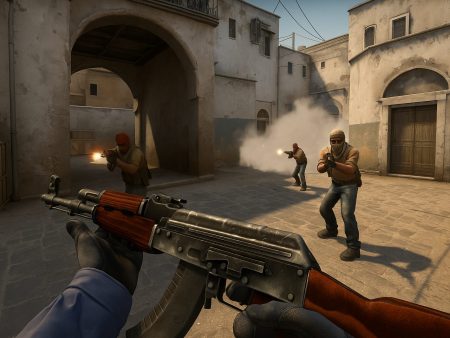
Discover the best CS2 graphics settings to boost FPS and enhance visibility. This ultimate guide covers pro tips, performance tweaks, and optimized configs for competitive gameplay on any PC.

If you’ve ever played CS2 in a heated 1v1 situation, you already know that every millisecond counts. In competitive games like Counter-Strike 2, performance isn’t just about aesthetics—it directly impacts your gameplay. A stutter or lag spike can cost you the round. That’s why optimizing your graphics settings is crucial, not just for smoother visuals but for maximizing your reaction time and visibility.
CS2 is a fast-paced, tactical shooter where spotting an enemy half a second earlier can determine the outcome of an entire match. Graphics settings can either help or hinder your ability to notice fine details like player silhouettes, movement, and even subtle sound cues. Cranking everything to ultra might make the game look like a cinematic masterpiece, but if it drops your frames into the 50s, you’re essentially playing at a disadvantage.
Many pro players and competitive gamers sacrifice visual fidelity for performance. Why? Because a high and stable FPS (frames per second) gives you smoother motion and better input responsiveness. That’s more important than having nice shadows or realistic lighting. So, if you’re looking to climb the ranks in CS2, tweaking your graphics settings for maximum performance and visibility should be at the top of your list.
Balancing FPS and Visual Clarity
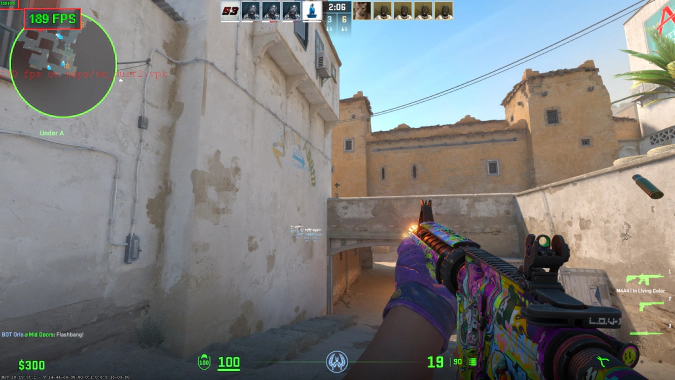
The key to optimizing CS2 isn’t just turning everything down to the lowest. It’s about finding the right balance. Some settings drastically affect FPS with little benefit in gameplay, while others improve visibility without a major performance hit.
Let’s say you’re running CS2 on a mid-range setup. You could lower shadow quality (which doesn’t impact your ability to see enemies much) while keeping texture detail high enough so that maps and enemy skins don’t look like a blurry mess. Similarly, enabling certain post-processing effects may make the game look “prettier,” but they can blur your vision or lower clarity during fast movements.
Here’s where knowing what each setting does becomes essential. You want to prioritize FPS, but without compromising crucial visual cues. We’ll guide you through exactly how to do that.
Understanding CS2 System Requirements

Minimum vs Recommended Specs
Before diving into the nitty-gritty of settings, it’s important to understand whether your PC can even handle CS2 efficiently. Valve has published both minimum and recommended specs, and they set the baseline for what kind of experience you can expect.
Minimum Requirements:
- OS: Windows 10 (64-bit)
- Processor: Intel Core i5-2500K or AMD FX-6300
- Memory: 8 GB RAM
- Graphics: GTX 1050 Ti or AMD equivalent
- DirectX: Version 11
Recommended Requirements:
- OS: Windows 10/11 (64-bit)
- Processor: Intel Core i5-6600K or Ryzen 5 1600
- Memory: 16 GB RAM
- Graphics: NVIDIA GTX 1660 or AMD RX 590
- DirectX: Version 11 or 12
If you’re meeting only the minimum, your focus should be entirely on maximizing FPS. Those on recommended or higher-end rigs can afford a little more visual fidelity while maintaining smooth gameplay.
Importance of GPU and CPU in FPS Games
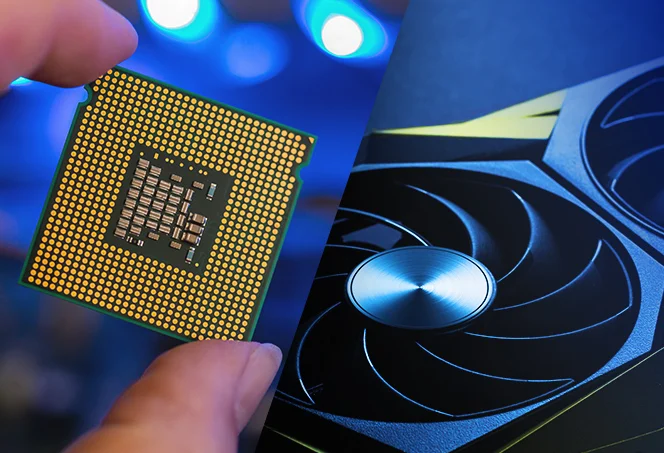
CS2 uses Valve’s Source 2 engine, which is more demanding than the classic Source engine in CS:GO. This means your CPU and GPU workload has increased. In FPS games like CS2, the CPU processes game logic (like physics and netcode), while the GPU handles visuals.
For stable high FPS (144+), especially in a competitive environment, both the CPU and GPU need to work in harmony. A strong GPU helps with higher resolutions and smoother textures, but if your CPU can’t keep up, you’ll still face performance issues.
The takeaway? Even if you have a decent graphics card, a bottlenecked CPU can hurt your FPS. That’s why tweaking settings is often more effective than just relying on raw hardware.
Best Video Settings for Maximum FPS
Resolution and Aspect Ratio
One of the first decisions you’ll need to make is your resolution and aspect ratio. These directly affect both performance and how much of the game world you see on screen.
Common Pro Resolutions:
- 1280×960 (4:3 stretched)
- 1280×1024 (5:4)
- 1920×1080 (16:9)
Lowering your resolution increases FPS, but it also makes the game look less sharp. Many pros play on 4:3 stretched because it makes enemy models appear wider, making them easier to hit. However, it does limit your peripheral vision slightly compared to 16:9.
Tips:
- If FPS is your main goal: Drop to 1280×960 or even 1024×768.
- If you want visibility and clarity: Stick with 1920×1080.
- For competitive advantage: Try 4:3 stretched to widen targets.
Display Mode (Fullscreen vs Windowed)
Always, always go with Fullscreen mode. This ensures CS2 has complete access to your system’s resources. Windowed and borderless windowed modes might be more convenient, but they introduce input lag and FPS drops because of background process interference.
Why Fullscreen Wins:
- Better input latency
- More stable frame rates
- Prioritized GPU allocation
It’s one of the simplest changes with a huge payoff in performance.
Refresh Rate and V-Sync Settings
Refresh Rate:
Your monitor’s refresh rate determines how many frames it can display per second. A 144Hz or 240Hz monitor allows for much smoother gameplay than a 60Hz one.
Make sure your in-game setting matches your monitor’s native refresh rate:
- 60Hz monitor → Cap FPS at 60 (or 75 if supported)
- 144Hz monitor → Cap FPS at 144
- 240Hz monitor → Push for 240+ FPS if possible
V-Sync:
Turn V-Sync OFF. While it eliminates screen tearing, it introduces input lag, which is a killer in competitive games. You’re better off dealing with occasional tearing than losing milliseconds of input time.
Advanced Video Settings Breakdown
Texture Quality and Filtering
Texture quality determines how detailed surfaces look in-game—like walls, player models, and weapon skins. While high textures make CS2 look more polished, they also demand more VRAM, which could slow down performance on low to mid-range GPUs.
Here’s how to approach it:
- Low texture settings free up VRAM, allowing smoother gameplay, especially in action-packed moments.
- Medium settings offer a decent compromise between performance and visual clarity.
- High/Very High settings are ideal only for high-end rigs where FPS is already well above 200.
As for texture filtering, which sharpens surfaces at oblique angles, setting it to Bilinear or Trilinear is usually enough for visibility without hitting performance too hard. Anisotropic filtering (AF) improves visual clarity but has a higher GPU load—stick with 2x or 4x max if your system is mid-tier.
If you’re aiming for pure performance, keep texture quality at Low or Medium, and texture filtering at Bilinear.
Shader and Shadow Settings
These are two of the most performance-intensive settings in CS2. They can dramatically affect both FPS and visibility.
Shaders are responsible for visual effects like lighting, water reflections, and glowing materials. While cool, these don’t help you win gunfights. Keep shader detail on Low or Medium—you’ll still see the enemies just fine without the added glow.
Shadow settings have a larger gameplay implication. Shadows can reveal enemy positions before they enter your field of view—especially around corners or behind crates.
However, not all shadow settings are equal:
- Low shadows offer a basic shadow blob but are easier on performance.
- High shadows give directional and softer shadows, which can look better and offer more realistic cues but lower FPS.
Most pros use Low or Medium shadow settings to maintain visibility of enemy movement without tanking performance.
Multisampling Anti-Aliasing Mode (MSAA)
MSAA smooths jagged edges, making models look cleaner and easier on the eyes. While this is visually appealing, it can have a noticeable FPS cost—especially on mid-tier or low-end GPUs.
Settings:
- Disabled: Max performance, jaggy edges
- 2x MSAA: Low performance hit, minor smoothing
- 4x MSAA: Good visual improvement, higher GPU load
- 8x MSAA: Overkill unless on a top-tier GPU
For most players, 2x MSAA offers a good balance. If you’re on a tight budget hardware-wise, turn it off for best performance.
Global Shadow Quality
This setting defines how detailed shadows look across the entire map. Lower settings result in blocky or pixelated shadows, while higher ones produce more realistic shadows.
As mentioned earlier, some players argue that Medium gives the best combination of enemy-revealing shadows and FPS. However, Low is typically preferred for pure performance-focused setups.
Avoid Very High unless your PC can easily push 300+ FPS already.
Optimizing Visibility in CS2
Best Brightness and Contrast Settings
Being able to clearly see enemies is a game-changer, especially in darker parts of maps or corners. One of the simplest ways to improve visibility is by adjusting brightness and contrast—not just in-game, but through your monitor or GPU software.
In-Game Settings:
- Set Brightness to 110-130% depending on your monitor.
- Enable Boost Player Contrast (a new feature in CS2) to help distinguish enemy models from the background.
Monitor Calibration:
- Increase contrast and reduce overly warm color temperatures.
- Avoid auto-brightness or adaptive contrast features.
Your goal should be: clear visibility in both bright and dark areas, without washing out the image.
Color Mode and Digital Vibrance
CS2 allows you to select color modes, which affect how saturated and vibrant the game looks.
Color Mode Options:
- Computer Monitor: Offers better contrast and is the go-to for most players.
- TV: Can oversaturate the image, reducing clarity.
Digital Vibrance (in NVIDIA Control Panel) boosts color saturation. It makes enemies “pop” more, especially when contrasted against neutral or dull map textures.
Recommended settings:
- Set Digital Vibrance to 70-80% in NVIDIA/AMD settings.
- Stick with Computer Monitor color mode for clarity.
A colorful map makes it easier to differentiate enemies from the environment. Just don’t overdo it, or it might strain your eyes.
Boosting Enemy Visibility
This is where pro players get crafty. You can’t use cheats or unfair mods, but you can maximize your legit visibility using contrast boosts, vibrance settings, and smart shadows.
Tips to boost visibility:
- Disable Motion Blur (always).
- Keep Model/Texture Detail on Medium—enough detail to see enemies clearly, but not bog down FPS.
- Enable Boost Player Contrast in video settings.
- Adjust monitor settings for sharpness and gamma (helps in darker map sections).
The right visibility settings give you an edge in spotting heads peeking out or players trying to blend into backgrounds. If your setup makes them stand out more, you’re halfway to winning the duel.
NVIDIA/AMD Control Panel Tweaks
Best NVIDIA Settings for CS2
For NVIDIA users, the Control Panel offers performance boosts beyond in-game settings.
Key NVIDIA Tweaks:
- Low Latency Mode: Set to Ultra for reduced input delay.
- Power Management Mode: Set to Prefer Maximum Performance.
- Texture Filtering – Quality: Set to High Performance.
- Vertical Sync: Off.
- G-Sync: Optional—good for screen tearing, but can introduce input lag.
Also, turn on Digital Vibrance (as mentioned earlier) to improve enemy visibility.
Use NVIDIA Reflex: This is built into CS2 and should be enabled for lower system latency—critical for competitive gameplay.
Best AMD Settings for CS2
AMD users can also boost FPS and reduce latency with a few tweaks.
Key AMD Settings:
- Radeon Anti-Lag: Turn ON.
- Radeon Chill: Disable it for maximum FPS.
- Texture Filtering Quality: Set to Performance.
- Surface Format Optimization: Enable.
- Wait for Vertical Refresh: Always off.
Use Color Temperature and Saturation settings in AMD’s control panel to replicate NVIDIA’s digital vibrance trick. This will help improve visibility without hurting performance.
In-Game Settings That Affect FPS
Multicore Rendering
This setting allows CS2 to take advantage of multiple CPU cores. Unless you’re running on an ancient CPU, this should always be enabled. It drastically improves FPS by spreading out the processing workload.
Even on mid-range systems, enabling this can add 20–30 extra frames.
Pro tip: Pair this with low-detail graphics settings to get the most out of your CPU.
Particle and Effect Detail Settings
These settings control visual effects like smoke, fire, and explosions. While cool to look at, they’re largely cosmetic—and they kill your FPS.
Best Settings:
- Effect Detail: Low
- Particle Detail: Low
- Ambient Occlusion: Off
By keeping these minimal, you reduce visual clutter and improve your system’s ability to handle rapid combat scenes.
Custom Launch Options for Better Performance
Most Effective CS2 Launch Commands
Using launch options in Steam is one of the easiest ways to boost CS2’s performance without ever touching the in-game menu. These commands tell the game engine how to behave even before the game starts, optimizing memory usage, CPU performance, and more.
Here are the most effective CS2 launch options for FPS and smooth gameplay:
-novid -high -tickrate 128 -nojoy -threads 4 +fps_max 300 +cl_forcepreload 1
Explanation:
-novid: Skips the intro video for faster startup.-high: Launches the game in high CPU priority mode.-tickrate 128: Sets offline servers to use 128 tick (better for practice).-nojoy: Disables joystick support, freeing up RAM.-threads X: Replace X with your CPU’s thread count.+fps_max 300: Caps FPS to 300, preventing power waste.+cl_forcepreload 1: Preloads game assets to reduce stuttering during play.
These tweaks can free up system resources and improve consistency, especially on lower-end systems.
How to Add Launch Options in Steam
Setting these launch commands is super simple:
- Open Steam Library.
- Right-click on Counter-Strike 2 > Select Properties.
- In the General tab, scroll to Launch Options.
- Paste your desired commands in the input box.
Steam will now use these settings every time you start CS2.
Monitoring Performance in Real-Time
Using FPS Counter and Net Graph
Monitoring your FPS in real-time helps you understand what settings affect your gameplay and where performance drops might be coming from.
Enable FPS Counter in CS2:
- Open console (press
~) - Type
cl_showfps 1— shows current FPS in the top corner.
For more detailed performance data, use the Net Graph:
- Type
net_graph 1in the console.
This displays:
- Real-time FPS
- Ping
- Packet loss
- Server tickrate
Understanding this data is essential when troubleshooting lags or frame drops. If your ping is stable but FPS drops during smoke or fire fights, your GPU might be overloaded.
Identifying Bottlenecks
Sometimes the culprit behind poor performance isn’t obvious. Is your CPU maxed out? Is your RAM usage too high? Are background apps hogging resources?
Here’s how to identify performance bottlenecks:
- Use Task Manager (
Ctrl + Shift + Esc) to check CPU/GPU/RAM usage. - Use MSI Afterburner or HWMonitor for in-depth hardware monitoring.
- Close unnecessary background processes before launching CS2.
Knowing where your system is struggling allows you to make targeted tweaks instead of just guessing which setting to lower.
Recommended Settings for Low-End PCs
Best Balance Between Quality and Performance
If you’re playing CS2 on a potato PC, don’t worry—you can still enjoy competitive gameplay by adjusting your settings smartly.
Here’s a proven config for low-end setups:
- Resolution: 1280×960 (4:3 stretched)
- Display Mode: Fullscreen
- Texture Detail: Low
- Effect Detail: Low
- Shader Detail: Low
- Anti-Aliasing: Off
- Multicore Rendering: Enabled
- Shadow Quality: Low
- Boost Player Contrast: Enabled
This config maximizes FPS while keeping enemies visible. Sure, the game won’t win beauty contests, but it’ll run smooth—giving you a better shot at clutching rounds.
How to Improve Performance Without Upgrading Hardware
Not everyone can afford a GPU upgrade. Luckily, you can still squeeze out extra FPS using smart software and maintenance:
- Update Graphics Drivers regularly (NVIDIA/AMD).
- Turn off Windows visual effects: Go to System > Advanced System Settings > Performance Settings > Adjust for best performance.
- Set CS2’s priority to High in Task Manager.
- Disable background apps like Chrome, Discord overlays, or Steam browser.
- Use tools like CCleaner to clean junk and manage startup apps.
- Defragment your HDD (if not using SSD).
These free steps often result in noticeable FPS gains without costing a penny.
Pro Player Graphics Settings for CS2
What the Pros Use and Why
Wondering what settings the top CS2 pros are using? Spoiler: It’s not ultra graphics. Most pros optimize for FPS and visibility, not for looks.
Here’s what common pro settings look like:
| Setting | Common Pro Choice |
|---|---|
| Resolution | 1280×960 (4:3) |
| Texture Detail | Low or Medium |
| Effect Detail | Low |
| Shader Detail | Low |
| Anti-Aliasing | Off or 2x MSAA |
| Multicore Rendering | Enabled |
| Shadow Quality | Low or Medium |
| Display Mode | Fullscreen |
| Brightness | 110-130% |
| Digital Vibrance (NVIDIA) | 70-80% |
Why it works:
- 4:3 stretched makes targets appear wider.
- Low settings minimize distractions and visual clutter.
- High FPS ensures smoother crosshair movement and shooting.
Key Takeaways from Pro Settings
- Performance > Graphics: CS2 is about quick reactions, not pretty visuals.
- Visual clarity > Fancy effects: Make enemies pop, reduce shadows and unnecessary lighting.
- Customization matters: Pros spend time fine-tuning settings for each system and map.
If you’re serious about climbing ranks, following these configurations is a solid start.
Common Mistakes to Avoid
Overusing High Graphics on Weak Systems
Many players crank up graphics thinking it’ll help visibility. In reality, it just tanks your FPS and introduces input lag. If your rig isn’t high-end, using ultra shadows, anti-aliasing, and shaders only hurts you.
Symptoms of overloaded graphics:
- Input delay
- Frame stutters in fights
- Random lag spikes
Always test new settings in a bot match or casual server before jumping into ranked play. Aim for consistent 144+ FPS, not fluctuating visuals.
Misconfigured Display Settings
Another common issue is incorrect monitor setup:
- Refresh rate not set to 144Hz/240Hz in both Windows and CS2.
- V-Sync left enabled.
- Wrong aspect ratio selected.
Fix it:
- Go to Windows Display Settings > Advanced Settings and set the max refresh rate.
- Match resolution and refresh rate in CS2 settings.
- Ensure GPU drivers are set to performance mode.
Small tweaks can make a world of difference in responsiveness and visibility.
Useful Tools and Mods for Optimization
FPS Booster Tools
There are several safe and widely used tools that help boost CS2 performance, especially for players on older machines. These tools typically focus on clearing RAM, stopping unnecessary background processes, and applying system optimizations.
Popular FPS booster tools:
- Razer Cortex: Temporarily shuts down background processes and focuses your PC’s resources on the game.
- MSI Afterburner: Monitors system temps and can be used to overclock your GPU (advanced users only).
- Game Booster by IObit: Optimizes PC performance by cleaning RAM and pausing background services.
These tools won’t work miracles, but when combined with the right in-game settings, they can give you an extra 10–20 FPS—enough to go from choppy to playable.
Safe Config Tweaks
There are also in-game .cfg file tweaks and console commands that optimize performance. Some useful ones include:
cl_forcepreload 1– Loads map resources before the match to prevent stutters.fps_max 300– Caps FPS to keep it stable.mat_queue_mode 2– Forces multicore rendering to improve performance.
You can create an autoexec.cfg file in your CS2 config directory and paste these commands in to load them automatically every time the game starts.
Where to save it:
Steam\steamapps\common\Counter-Strike Global Offensive\game\csgo\cfg
These tweaks are 100% safe, VAC-secure, and commonly used by pro players to get a consistent FPS boost.
Maintaining System Health for Peak FPS
Keeping Drivers Updated
One of the simplest and most often overlooked ways to boost performance is keeping your system drivers up to date. Your GPU manufacturer (NVIDIA or AMD) regularly releases driver updates specifically optimized for games like CS2.
Steps:
- Visit the official NVIDIA/AMD website.
- Download the latest Game Ready or Adrenalin driver.
- Install using a clean installation option to remove previous versions.
An updated driver can sometimes deliver a 5–10% performance increase or fix stuttering issues caused by older software.
Background Process Management
You might be surprised how many background apps drain your system resources while you’re trying to game. Apps like Chrome, Discord overlays, Spotify, and even Windows Update can eat up CPU and RAM.
To manage background tasks:
- Press
Ctrl + Shift + Escto open Task Manager. - Go to the Startup tab.
- Disable all non-essential startup apps.
- Before gaming, close apps like browsers, video editors, or streaming services.
Also, enable Game Mode in Windows and disable Xbox Game Bar—both of which can interfere with CS2’s performance depending on your system.
The goal is to free up every bit of power for the game so your system doesn’t lag when it matters most.
Conclusion: Achieving the Perfect Balance
Finding the best CS2 graphics settings for FPS and visibility is all about balancing performance with clarity. You don’t need to max out everything for the game to look good or run smoothly. In fact, most competitive players prioritize raw performance and sharp visibility over fancy effects or ultra HD textures.
Whether you’re on a high-end rig or a basic laptop, the principles stay the same:
- Lower settings that don’t help visibility (like shadows, shaders).
- Use performance-enhancing tools and control panel tweaks.
- Customize your launch options and monitor system performance.
- Prioritize enemy visibility with color tuning and player contrast features.
Remember, CS2 is a game of milliseconds. Every frame counts, and smoother gameplay directly translates to better aim, faster reflexes, and more clutch wins. Use this guide as your optimization blueprint and you’ll be dominating the servers with clean, consistent FPS—and a clearer shot at global elite.
FAQs
What’s the ideal FPS for CS2?
For competitive play, aim for 144 FPS or higher to match high refresh rate monitors. Anything above 200 FPS is considered excellent. For casual play, 60–100 FPS is still enjoyable but not optimal for ranked matches.
Do graphics settings affect hit registration?
No, graphics settings do not affect hit registration directly. However, low FPS can cause input lag, which might make your shots feel delayed or inaccurate. That’s why high FPS is critical for clean aim and proper timing.
Is fullscreen better for visibility?
Absolutely. Fullscreen mode gives your game priority access to GPU resources and reduces input lag, while also minimizing distractions from other windows or notifications. Avoid windowed or borderless modes unless you have a specific need.
Can changing resolution improve aim?
Yes, in a way. Many players feel that using 4:3 stretched makes enemy hitboxes feel easier to hit since models appear wider. While this is purely visual, it does affect how you perceive and react to targets.
Should I use NVIDIA Reflex?
Yes. If you’re using an NVIDIA GPU, enabling NVIDIA Reflex helps reduce system latency, making your inputs feel more responsive. This can give you a slight edge in fast-paced gunfights.