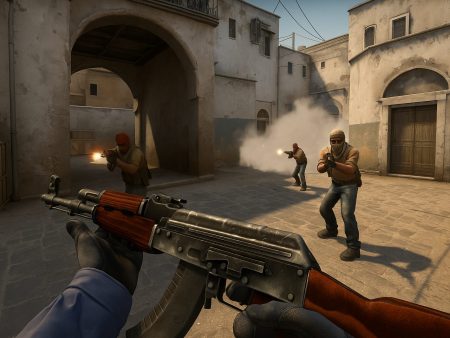
Optimize your CS2 audio for competitive play with the best sound settings to hear footsteps better. Discover pro tips, EQ tweaks, headset recommendations, and more for a sharper in-game sound advantage.

When it comes to competitive FPS games like Counter-Strike 2 (CS2), milliseconds make a difference. You either hear the enemy sneaking up behind you or you don’t — and that moment can decide the round. That’s where sound settings become your secret weapon.
In CS2, sound is more than just ambiance — it’s intelligence. Every footstep, reload, or weapon drop tells you something about your enemy’s location. Yet, despite its importance, most players overlook how powerful audio can be when properly tuned. If you’ve ever watched pro matches, you know how often a player wins or survives just because they heard a footstep.
CS2 introduces an updated sound engine with richer, more directional audio, but this also means it requires a smarter setup to optimize it for competitive gameplay. This guide is your blueprint for setting up your sound so crisp, you’ll feel like you’re standing right there behind your enemies.
We’ll dive deep into in-game settings, system-level tweaks, hardware suggestions, and more. Whether you’re a casual player or grinding FACEIT levels, hearing footsteps better can boost your performance. Ready to level up? Let’s get your ears tuned like a pro’s.
Why Hearing Footsteps Matters

Footsteps are the lifeblood of game sense in CS2. They give away crucial information: direction, distance, number of enemies, even the weapon type based on how fast they’re moving. With footsteps alone, you can decide whether to rotate, hold, peek, or fall back. You don’t even need to see the enemy — just hear them.
Let’s break it down:
- Enemy Location: Footsteps tell you exactly where someone is moving. Are they walking up short A or sneaking through mid?
- Flanks and Pushes: Catch lurkers early by listening to small, rushed footsteps or shifts in direction.
- 1vX Clutch Potential: In clutches, sound gives you the upper hand. You can pre-aim, pre-fire, and surprise enemies just because you heard them first.
- Mind Games: Footsteps can also be bait. Skilled players will fake-run to draw your attention, then walk silently.
But all this relies on you actually hearing those steps. And in CS2, poorly configured sound settings mean you might miss them entirely. The default setup isn’t optimized for competitive play, which is why fine-tuning audio is essential. Whether it’s adjusting the mix or boosting certain frequencies, your ability to pick up subtle movement sounds can make you deadlier.
Still wondering why you get shot from angles you swear were clear? Maybe it’s not your aim — it’s your ears. Let’s fix that.
How CS2’s Sound Engine Has Changed from CS:GO
If you’re coming from CS:GO, you might’ve noticed CS2 sounds… different. That’s because it is. Valve overhauled the entire audio engine using their Source 2 framework. This has a big impact on how footsteps and directional audio behave.
Here’s what’s new:
- Higher-Quality Audio Files: Footstep sounds are clearer, with better spatial differentiation.
- Improved Sound Propagation: In CS2, sound interacts with surfaces, angles, and objects more realistically. This means footsteps behind walls or above floors may sound muffled or distant — intentionally.
- 3D Spatial Audio Support: CS2 introduces a deeper positional audio model that mimics real-world sound travel. If you’re not using proper headphones or settings, you might miss a lot.
But here’s the kicker — while these changes aim to make the game more immersive, they also introduce complexity. In CS:GO, sound cues were often flat and predictable. In CS2, they’re nuanced, directional, and sometimes deceptive unless your setup is spot on.
One major upgrade is the support for HRTF (Head-Related Transfer Function), which we’ll talk about more in a bit. This enables realistic simulation of how your ears perceive direction, making it easier to distinguish between someone running on the second floor vs. on your level.
So if you’re feeling lost in audio confusion after the switch from CS:GO to CS2, you’re not alone. But once you dial in the new system, the advantage is huge. Time to adapt and conquer.
Understanding the CS2 Audio System
CS2’s sound system is based on realism and positional awareness. That means it tries to replicate how we hear things in the real world. You get directional cues not just left or right, but above, below, and even through doors and walls — depending on distance and materials.
There are three key elements you need to understand:
- Positional Audio – Sounds come from specific directions. If your headset or sound setup doesn’t support positional audio, you’re playing at a disadvantage.
- Sound Obstruction – Audio now changes based on obstacles. A footstep behind a concrete wall sounds different from one in an open hallway.
- Dynamic Range and Prioritization – CS2 tries to prioritize important sounds like footsteps over background noise, but only if your settings let it.
Valve designed this system for immersive gameplay, but it can work against you if you don’t configure things properly. That’s why using stereo headphones (not 7.1 surround emulation) and turning off unnecessary enhancements is a must.
We’ll guide you through the exact steps to fine-tune everything. For now, just understand this: CS2’s audio is a tool. Master it, and you won’t just hear footsteps — you’ll read them.
Headphones vs. Speakers: What’s Better for CS2?
Let’s be real: if you’re playing CS2 with speakers, you’re doing it wrong. Here’s why headphones are non-negotiable in competitive play:
- Precision: Headphones isolate sound. You hear left, right, front, back, up, and down with way more clarity.
- Noise Isolation: Background distractions are minimized, helping you focus on subtle cues.
- Sound Leakage: With speakers, everyone hears your game — and footsteps blend into room noise.
Not all headphones are created equal, though. You’ll want a pair with:
- A wide soundstage (helps with distance accuracy)
- Clear mids and highs (footsteps mostly lie in these frequencies)
- A good seal (closed-back is usually better for FPS)
- No boosted bass (bass-heavy headphones drown out footstep noise)
Pro tip: Avoid virtual 7.1 surround sound features from gaming headsets. They often do more harm than good by overprocessing audio and creating artificial spatial sounds that aren’t in sync with CS2’s engine. Stick with stereo + HRTF for the best results.
In the next section, we’ll dive into the exact in-game settings that turn your headset into a footstep radar.
Best In-Game CS2 Sound Settings for Footsteps
Getting your CS2 in-game sound settings just right is step one in sharpening your footstep detection. Valve offers a solid foundation, but you’ll want to tweak a few things to tailor the game for competitive audio performance. Here’s a breakdown of the settings you must adjust:
Master Volume and Game Sound
- Set Master Volume between 0.7 to 1.0 – anything below this can mute vital details like distant footsteps.
- Disable “Mute Game When in Background” – if you alt-tab frequently, this setting can cut off incoming audio cues.
- Turn off “Play Audio When Game Window is Not Focused” if you’re focusing solely on CS2 – helps reduce system conflicts.
Audio Output Configuration (Stereo vs. Surround)
This one’s huge. Always select “Stereo Headphones” in your Audio Output Configuration unless you’re playing on speakers (which we already said is not ideal). Here’s why:
- Stereo matches how CS2’s HRTF works.
- Surround sound often muddies directional cues.
- Avoid any simulated surround (like “5.1” or “7.1”) through in-game settings — it’s misleading.
Audio Mix Preset – Which One to Choose?
Valve includes a few audio mix presets designed for different situations. Here’s what we recommend:
- Use “Headphones” preset if available — it’s optimized for clarity and directional sound.
- If not, “Stereo Speakers” can work, but reduce the bass via external EQ tools.
- Never use “TV” or “Laptop” presets — they’re built for casual use, not performance.
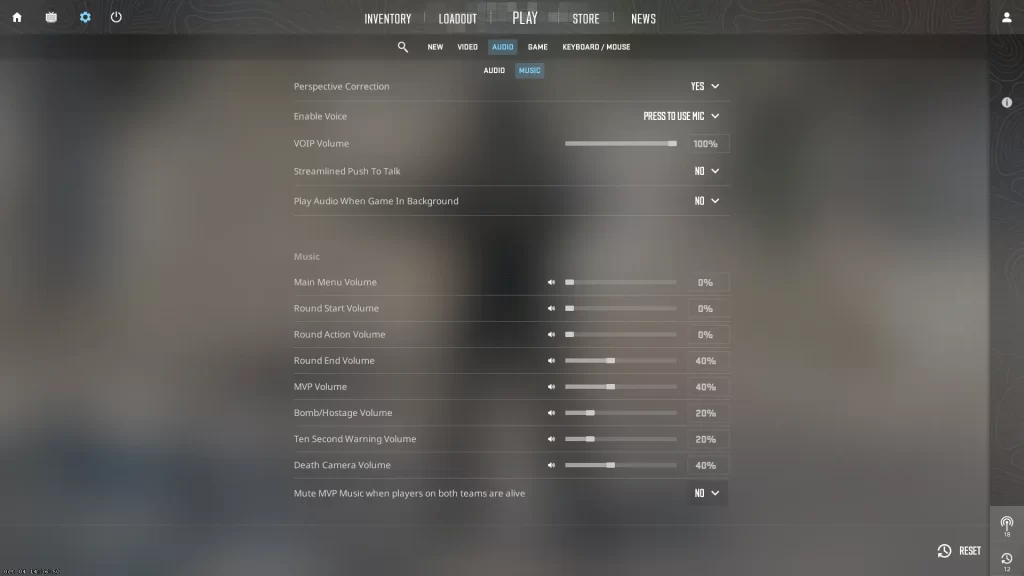
Bonus Tip: Turn off Music Volume or at least reduce it significantly. Victory music, round start/end music, and bomb beeps can all distract from subtle movement noises. Every dB counts.
Advanced Audio Settings to Boost Footstep Clarity
Once you’ve nailed the basics, it’s time to get advanced. Here’s where the real separation between casuals and competitors happens.
Enabling HRTF (Head-Related Transfer Function)
HRTF is a game-changer. It mimics how sound bounces around your head and ears in real life, giving a true 3D audio experience. When enabled in CS2, it lets you:
- Distinguish between above vs. below
- Detect exact directions of footsteps, even at long range
- Improve positional awareness in complex maps
To enable HRTF:
- Go to Audio Settings
- Toggle “Enable HRTF” to ON
Note: Some users say HRTF makes audio sound slightly “hollow” or distant. If that bothers you, try playing with it on for a few hours — it takes time to adjust, but the benefits are worth it.
Lowering Other Sound Sources (Gunfire, Music, etc.)
Gunshots are loud. Like, really loud. And while that’s realistic, it drowns out softer sounds like footsteps. Your goal is to lower non-essential volumes without losing key information.
Here’s how:
- Lower Weapon Volume slightly via game sliders
- Set Music Volume to 0%, or just keep round start/end music low
- Turn off Deathcam music and MVP music
This helps ensure that footsteps aren’t overwhelmed during firefights or transitions.
Equalizer Tweaks and Frequency Isolation
Footsteps typically live in the 2kHz – 5kHz range, depending on surface and player movement. Boosting these frequencies with an external EQ (like Equalizer APO or SteelSeries Sonar) can help footsteps pop.
Recommended EQ settings for footsteps:
| Frequency | Adjustment |
|---|---|
| 60Hz | -3 dB |
| 120Hz | -2 dB |
| 1kHz | 0 dB |
| 3kHz | +3 dB |
| 5kHz | +4 dB |
| 8kHz | +2 dB |
Avoid over-boosting — it can create distortion. Aim for clarity, not volume.
System-Level Settings to Improve Footstep Detection
Beyond CS2’s in-game settings, your Windows or OS-level audio configuration can make or break your setup. Let’s lock in the right system tweaks.
Windows Sound Settings Optimization
Here’s how to configure Windows audio for CS2:
- Right-click your sound icon > Sounds > Playback Devices
- Select your headset > Properties
- Go to the Advanced tab
- Set Default Format to 48000 Hz, 24-bit (or 44100 Hz, if 48k isn’t stable)
- Disable all audio enhancements
- Go to the Spatial Sound tab and turn OFF anything like “Windows Sonic” or “Dolby Atmos”
These enhancements often conflict with CS2’s engine, leading to echo, delay, or muddy audio.
Sound Card Enhancements or Audio Software
Using a dedicated sound card or audio interface (like a Schiit Fulla, Creative Sound Blaster, or even onboard Realtek with good drivers) can add clarity.
Alternatively, you can use audio software like:
- Equalizer APO + Peace GUI
- SteelSeries GG + Sonar
- ASIO drivers for low latency (advanced users)
These tools allow precise EQ, noise gate control, and channel balancing — all of which help footsteps stand out.
Disabling Sound Enhancements That Harm Footstep Clarity
Most “enhancements” — bass boost, virtual surround, loudness equalization — are meant for movies or music, not competitive gaming.
To disable:
- Open Sound Settings
- Go to your headset > Properties
- Under Enhancements, uncheck everything
- Apply and restart CS2
Your ears will thank you.
Best Headsets for Hearing Footsteps in CS2
A solid headset is your best weapon next to a clean one-tap AK. Here are the things to look for — and the top contenders for 2025.
Wired vs. Wireless Gaming Headsets
For competitive play:
- Wired headsets offer zero latency, no battery issues, and consistent quality.
- Wireless headsets like the SteelSeries Arctis Nova Pro or Logitech G Pro X 2 are improving, but can have occasional delay or interference.
Unless you’re a fan of mobility or have a clutter-free setup, wired > wireless every time.
Top 5 Recommended Headsets for CS2 Players
- Audio-Technica ATH-AD700X – Open-back, incredible soundstage, perfect for footsteps.
- Sennheiser HD 560S – Balanced audio profile, amazing detail retrieval.
- HyperX Cloud II – Great midrange clarity, budget-friendly.
- SteelSeries Arctis Nova Pro (Wired) – Premium features, excellent tuning.
- Beyerdynamic DT 990 Pro – Studio-grade sound, requires amp, brilliant for audio awareness.
Remember: The headset is only as good as your settings. Don’t just plug and play — optimize.
External Tools & Software for Pro-Level Sound Tuning
While in-game and system settings lay the groundwork, external audio tools can give you that extra 10% edge — and in CS2, that 10% can win rounds. Let’s talk about how to supercharge your audio with third-party tools.
Using Equalizer APO + Peace Interface
Equalizer APO is a lightweight, free audio processing tool that lets you fine-tune sound on a deep level. Combined with Peace GUI, it becomes user-friendly and insanely powerful.
Setup Steps:
- Download Equalizer APO and Peace GUI
- Set your headset as the device to apply EQ
- Apply a custom profile like the footstep-focused EQ we shared earlier
- Enable preamp control, noise filters, and frequency tuning
Why it works:
- You isolate footstep frequencies
- Reduce boominess from explosions
- Boost directionality by enhancing mid-high tones
This setup is favored by streamers, semi-pros, and competitive grinders. Once you try it, you won’t go back.
DTS, Dolby Atmos, and Spatial Sound Software
These sound enhancement platforms promise “surround sound” for games — but do they help in CS2?
- DTS:X for Headphones: Can slightly enhance depth perception, but often over-processes.
- Dolby Atmos: Decent for cinematic games, but not ideal for CS2’s competitive scene.
- Windows Sonic: Better than nothing, but still no match for native stereo + HRTF.
Verdict: Avoid these unless you have a specific headset built for them. Native CS2 HRTF paired with proper EQ tuning will always be more accurate.
Custom Config & Launch Options for Better Audio
You’d be surprised how much a few command-line tweaks and config file edits can impact CS2’s sound. Let’s dig into those secrets.
CS2 Autoexec Config for Audio
Your autoexec.cfg file can house startup commands that ensure your settings load every time. These can help normalize volume, prioritize audio, and eliminate distractions.
Useful Audio Commands:
snd_mixahead "0.05"          // Reduces audio delay
snd_headphone_pan_exponent "2.0"  // Boosts stereo separation
snd_headphone_pan_radial_weight "1.0" // Enhances directional accuracy
volume "1"                   // Ensures master volume is max
snd_legacy_surround "0"      // Ensures new HRTF system is used
Save this config and run exec autoexec in console or include it in your launch options with +exec autoexec.
Launch Commands That Impact Sound
You can also include audio-related launch options in Steam for CS2:
- +snd_mixahead 0.05 – Lowers latency
- +volume 1 – Forces max game volume
- +cl_forcepreload 1 – Loads assets earlier, preventing audio stutter
To add them:
- Right-click CS2 in Steam Library
- Go to Properties > Launch Options
- Paste the commands
This helps your game start in a sound-optimized state every time.
Testing and Training Your Ears
Even with perfect settings, your brain needs training to process sound accurately — especially under pressure. Time to get your ears in shape.
CS2 Workshop Maps for Audio Practice
There are custom Workshop maps built specifically to test directional and distance-based audio. Try:
- “Footstep Trainer”
- “Sound Practice v2”
- “CS2 Audio Sound Map”
These maps simulate various scenarios, like enemies walking above, behind walls, or to the left. Train regularly, and you’ll start reacting instinctively.
Tips to Train Footstep Recognition
- Play with Eyes Closed – Focus purely on sound cues
- Record and Replay Games – Isolate moments where you missed footsteps
- Use Low Volume Music in Background – Forces your brain to isolate game audio
- Play Deathmatch with No Visual HUD – Helps you detect enemies by audio alone
The more you practice, the sharper your sound-based reflexes become. Footstep awareness is a skill — build it like aim training.
Common Mistakes Players Make with Sound
Even if you’ve adjusted every setting and bought the best headset, certain bad habits can still sabotage your footstep detection.
Overcomplicating Audio Settings
There’s a difference between optimizing and over-tuning. Common mistakes include:
- Boosting too many frequencies at once
- Stacking third-party enhancements with game settings
- Turning every setting to max “just in case”
Simple, clean sound setups almost always perform better. Stick to essentials and avoid doubling up on “enhancements” — they cancel each other out or distort.
Ignoring Footstep Audio in Team Communication
Sometimes the issue isn’t the game — it’s your team. Too much chatter can drown out footsteps. Here’s what to do:
- Use Push-to-Talk – Always.
- Communicate efficiently – Short, clear callouts
- Mute loud teammates mid-round – Especially in clutches
Also, keep in mind that your mic can pick up your own game sound if you’re not using proper isolation. That’s not just annoying — it ruins your own focus.
Avoid these mistakes and you’ll not only hear better, but listen better — and that’s what wins games.
Pro Player Insights on Footstep Audio
Want to know how pros always seem to know where enemies are before they peek? It’s not just reflexes — it’s audio awareness. Footstep audio is a huge part of the professional CS2 meta, and understanding how the top players use it can level up your own game.
Sound Tips from Pro CS2 Streamers
Many professional CS2 players, like s1mple, dev1ce, and ropz, emphasize sound just as much as crosshair placement or movement. Here are a few real tips they’ve shared:
- s1mple: Uses minimal sound enhancements, prioritizes clean stereo + HRTF, and often plays with low music and max volume. His reasoning? “If I hear one step, I know where they’re coming from.”
- ropz: Recommends recording POV demos and replaying key moments just to study audio. He often trains footstep awareness during warmups.
- dev1ce: Uses studio-quality headsets and custom EQ profiles to boost mids — same frequency range where footsteps live.
These players treat audio like information — and information wins rounds.
Real Examples Where Footsteps Win Rounds
Let’s look at scenarios where sound made all the difference:
- Clutch Situations: A 1v3 where a player hears two sets of footsteps splitting from mid. Instead of rotating to A, they hold a sneaky angle near connector — and get all three kills because they heard the rotate.
- Lurker Awareness: Hearing one slow footstep on B apartments while holding A? That’s a lurker baiting info. Don’t over-rotate. Many pros stay put based on just that cue.
- Fake Defuse vs. Stick: Pros listen for the footstep after the defuse tap. If they don’t hear one, they swing wide, knowing the enemy is sticking.
Bottom line: If you can hear it, you can outplay it.
Troubleshooting Sound Issues in CS2
If your audio still doesn’t feel right after all these tweaks, it might be a deeper issue. Let’s go over common sound problems and how to fix them fast.
Fixing Audio Delay or Lag
Audio lag is typically caused by:
- High latency USB headsets
- Background applications (Discord, OBS) hogging audio
- Poor sound driver configurations
Fixes:
- Use DirectSound over WASAPI or ASIO unless you know what you’re doing
- Restart CS2 after changing audio devices
- Disable exclusive mode in Windows sound settings
- Update or reinstall sound drivers (Realtek, SteelSeries, etc.)
Solving Missing Footstep Audio Bug
Some CS2 users report intermittent footstep loss. Common causes:
- Conflicting audio software (Razer Synapse, Nahimic, etc.)
- Sound bug from alt-tabbing frequently
- Corrupt game files or launch conflicts
Fixes:
- Verify game files via Steam
- Close all third-party sound software
- Delete
cs2_audio.vpkand let Steam redownload it - Use
+snd_restartin console mid-game (temporarily resets audio system)
If that doesn’t help, consider resetting all your CS2 settings and starting from scratch — something could be misconfigured.
Comparing CS2 Sound Settings with Other FPS Games
If you’ve played other FPS titles, you may wonder: Why does CS2 audio feel so different? Let’s compare it to popular games like Valorant and Call of Duty.
CS2 vs. Valorant vs. Call of Duty
| Feature | CS2 | Valorant | Call of Duty |
|---|---|---|---|
| Engine | Source 2 | Unreal Engine 4 | IW/Infinity Engine |
| HRTF Support | Native, strong | Built-in, less accurate | Yes, but more cinematic |
| Audio Clarity | High with tuning | Good out of the box | Loud, bass-heavy |
| Footstep Range | Realistic, distance-sensitive | Shorter audible distance | Variable, more dramatic |
| Customization | Very flexible | Limited | Medium |
CS2’s sound is more realistic, which makes it more punishing if you don’t tune it right. Valorant is more “gamey” — louder cues, less subtlety. Call of Duty relies on cinematic audio, not precision.
CS2 rewards players who learn the audio system. It’s not just plug and play.
What CS2 Does Differently
- Footsteps are surface-sensitive: Wood, metal, concrete all sound unique.
- Height matters: You can actually hear vertical differences.
- Sound occlusion is real: Walls block or muffle sound realistically.
Other games simplify audio for clarity. CS2 challenges you to adapt — and once you do, your ears become a weapon.
Final Setup Checklist
Before we wrap up, here’s your ultimate CS2 audio checklist for hearing footsteps like a pro:
- Set in-game audio to Stereo + HRTF
- Disable all Windows sound enhancements
- Use a wired headset with wide soundstage
- Boost 2kHz–5kHz frequencies using EQ
- Lower gunfire, music, and ambience volumes
- Add autoexec + launch options for optimization
- Train ear skills using Workshop maps
- Avoid “surround sound” gimmicks
- Keep communication clean — push-to-talk only
- Monitor sound health — restart game if issues pop up
Check every box? You’re ready.
Conclusion
In CS2, your ears are as powerful as your crosshair. With the right settings, gear, and awareness, footsteps transform from background noise into game-winning data. Whether you’re grinding ranked or just trying to outsmart your friends, dialing in your sound settings gives you an undeniable edge.
So don’t just settle for “hearing” footsteps — learn to read them, trust them, and react faster than your enemy can click. Because in a game of seconds and sound, the quietest step can be the loudest threat.
FAQs
What’s the best CS2 sound setting for footsteps?
Use Stereo Headphones with HRTF enabled, volume around 0.8–1.0, and music set to 0%. Pair that with an EQ boost around 3kHz–5kHz and you’ll hear every step.
Is HRTF necessary in CS2?
Yes. It adds realistic directional sound, making it easier to detect verticality and exact enemy positioning. It might feel odd at first, but once adjusted, it’s a game-changer.
How do I fix muffled footsteps in CS2?
Check your output device, disable all Windows enhancements, verify HRTF is on, and avoid using virtual surround. Also, try snd_restart in console to refresh sound.
What headset do pro CS2 players use?
Many use studio-grade gear like the Sennheiser HD 560S, Audio-Technica ATH series, or HyperX Cloud II. Key features: clear mids/highs and excellent imaging.
Do external sound cards help in CS2?
They can, especially if they include high-quality DACs or amp features. Better sound clarity and less distortion help footsteps stand out more — but settings still matter more than hardware alone.